

Suppose you ask InsightGig to revise a concept test note, then decide the original wording is better. Rewind the request to recover the recorded version and reopen the file to check it.
Before you begin
Set up project history before asking InsightGig to revise study files. To recover an existing edit, open the conversation that contains its request.
Make a practice edit
Try this with the fictional snack concept test files. Follow Add and switch projects to extract and open the files.
-
In Snack concept test, follow Set up project history and choose Include my current files. Check that history is on before you send the request.
-
Start a session in the snack project. Open
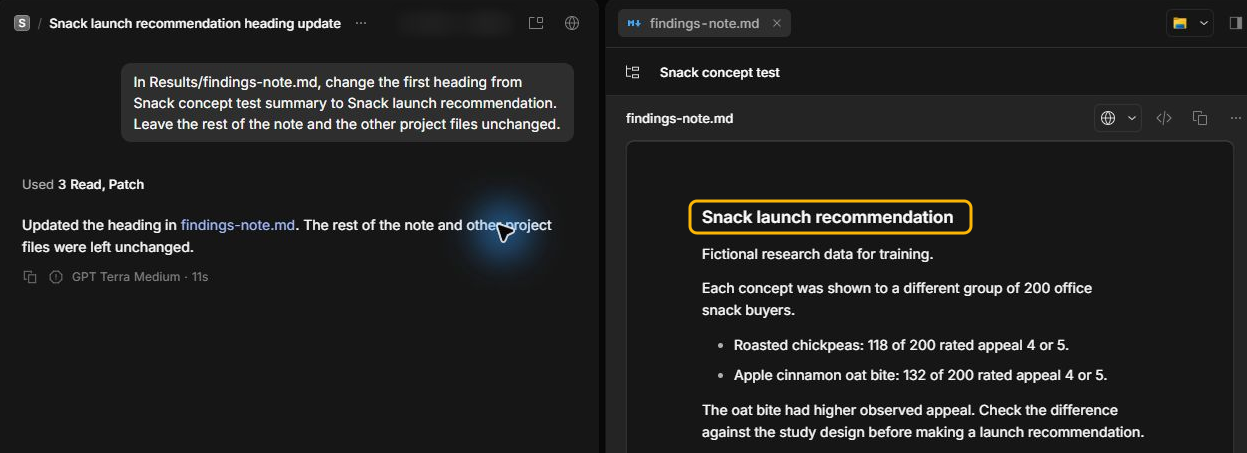
Results/findings-note.mdand check that it starts withSnack concept test summary. Choose Research and send this request.In Results/findings-note.md, change the first heading from Snack concept test summary to Snack launch recommendation. Leave the rest of the note and the other project files unchanged.
-
Wait for a reply, then open
Results/findings-note.md. The reply can vary. Check that the saved heading saysSnack launch recommendation, the exact heading requested.
The test models an edit you may want to undo. The study compares appeal for two snack ideas. The original title describes the evidence without implying a launch decision.
Rewind to the editing request
Use this route when you can identify the message that started the unwanted edit.
-
In the conversation, find the request that changed the file. Move your pointer over your message to show its actions.
-
Select the curved arrow labelled Rewind to here.
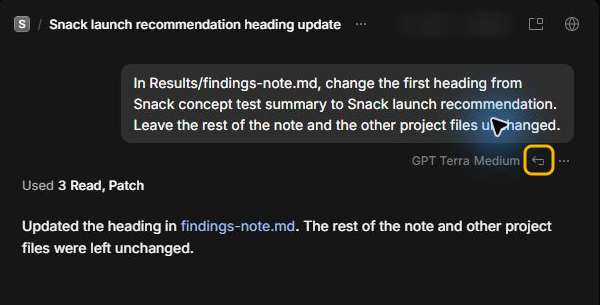
The request returns to the message box as a draft. InsightGig hides the reply and restores the recorded file version.
Undo the latest request
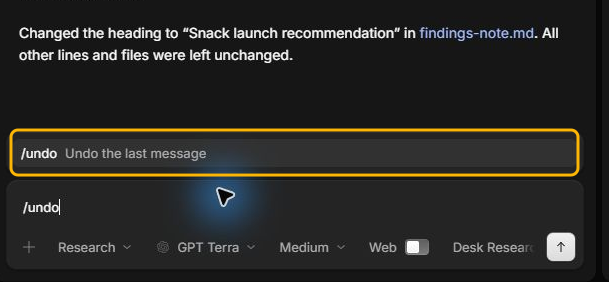
If the last request made the change, type /undo in the message box. Select Undo the last message from the list.
Check the restored file
Use Find and preview project files to open the affected file. In the example, findings-note.md shows its original heading, Snack concept test summary.
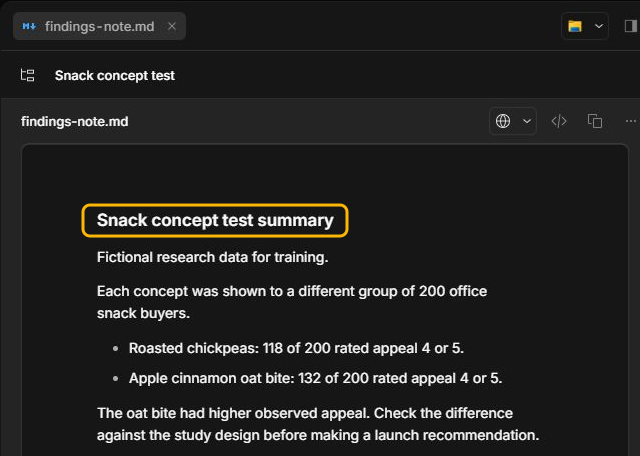
If the preview still shows the edited version, reopen the file from the project folder. Check that the file belonged to the project and that its earlier contents were recorded. Temporary files, excluded files, and large files added during the request can be absent from recorded versions.
Bring back the edit
If you decide to keep the edit, select Undo in the notice that appears after the rewind. It reverses the rewind.
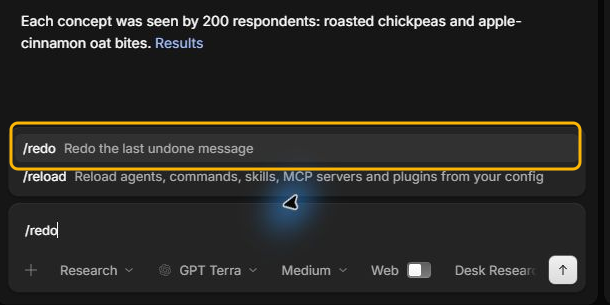
After the notice closes, clear the draft if it is still in the message box. Type /redo and select Redo the last undone message. Check that the reply and edited file version return.
Next steps
Once you have checked the version you want to keep, continue the conversation. To make a different edit after rewinding, review the draft before sending it.