

Use a clear session name when a study has several conversations. Archive finished work to clear it from your active list. Export a session when you need a copy of the conversation outside InsightGig.
To practise with fictional material, finish Send your first request. In Home, open Bottle redesign study and select the conversation with the focus-group analysis. Use that conversation for the rename, archive, and export steps.
Rename a session
-
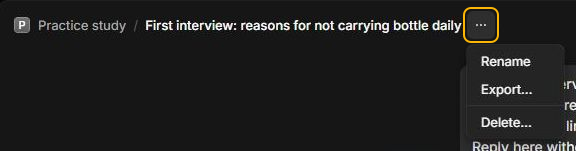
Open the conversation and select the three dots beside its title.
-
Select Rename and enter a title that describes the work, such as
Reusable bottle study: barriers to daily use.
-
Press
Enterto save it. The title updates in the conversation and on its tab if you use tabs.
Archive a finished session
-
Right-click the conversation in the Inbox sidebar and select Archive.
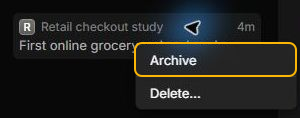
The session leaves the active list and stays available under Archived.
Bring back an archived session
-
Find the conversation under Archived in Inbox.
-
Right-click the conversation and select Unarchive.
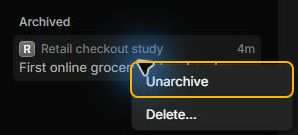
If Archived opens a search window in your app, type part of the title and select the conversation there. The session returns to the active list.
Export a conversation
-
Open the conversation. If you archived it in the example, first follow Bring back an archived session. Select the three dots beside the title and choose Export.
-
In the Save file window, choose a folder and name for the copy. Use the
.jsonextension so the file type is clear. Select Save.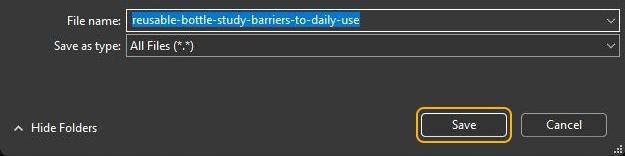
Look for the file in the folder you chose. JSON is a text format with labels for each part of the conversation. You can open the file in a text editor.
To review which files the agent opened during the conversation, see Read the session timeline.