

An approval request asks you to decide whether InsightGig may take an action. For example, the agent might need to read a file outside the current project.
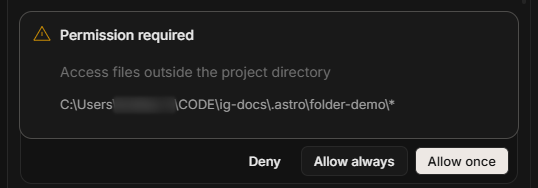
To practise, open the snack project. In File Explorer, create Approval practice beside the project folder and copy Brief/brief.txt into it. In a session, ask Research to read the copy and give its full path, meaning its address in Windows.
If the app requests approval, select Deny and ask Research to use Brief/brief.txt inside the project. Your permission settings affect whether an approval appears.
Review the proposed action
-
Open the conversation that needs a decision. In Inbox, look under Needs attention for a session marked Approval.
-
Read the action and affected files or folders in Permission required. If a command appears, check what it does and where it runs.
-
Choose Allow once if you intend to permit only that request. Choose Deny if the action goes beyond your brief or names an unexpected location.
If you deny a request, tell the agent what it can do instead. For example, ask it to work from a copy of the survey file in the study folder.
Check the app default
Go to Home > Settings > Preferences. Find Auto-accept permissions under General. When this setting is on, the app can accept permission requests without showing you a prompt.

Keep it off when you want to review actions that require permission. The app can still perform actions it already has permission to take.
Check one project’s setting
-
Go to Home > Settings > Projects.
-
Open the three-dot menu for the project and select Edit.
-
Under General, check Auto-accept permissions. Use default follows the app preference. On or Off sets a choice for this project.
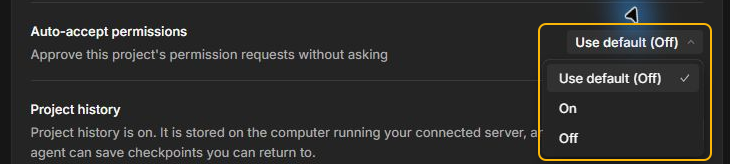
Check the project name before changing its setting. If you’re reviewing a request for a different project, open that project’s settings.
Next steps
Use Plan and run a task when you want to agree on the method before work begins. Review permission requests as the work runs.