

Install InsightGig from Microsoft Store on your Windows 11 computer. When the app opens, you can sign in with your InsightGig account.
Find InsightGig in Microsoft Store
Open the Store listing
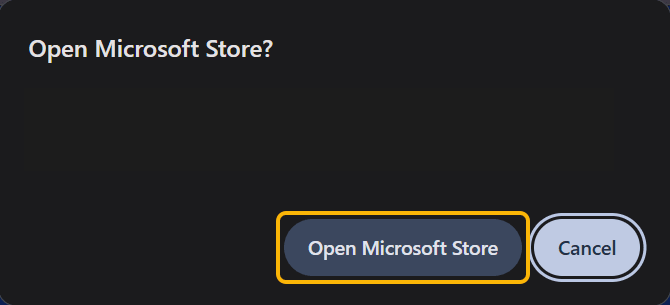
Open InsightGig in Microsoft Store. If your browser asks to open the Store app, select Open Microsoft Store.
If the listing stays in your browser, search in the Store app.
Search in the Store app
- Select Start, type
Microsoft Store, and open the Microsoft Store app. - In the Store search box, type
InsightGigand pressEnter. - Select InsightGig from the results to open its listing.
Install and open InsightGig
Start with the InsightGig listing open in the Microsoft Store app. Use either method in Find InsightGig in Microsoft Store to get there.
-
Check that both the app name and the publisher say InsightGig. Select Install and wait for the download to finish.

-
Select Open when it appears. If the listing already shows Open, you can use it right away.

You should see the InsightGig desktop window. To open it again, select Start, type InsightGig, and select the app from the results.
Next steps
Continue with Sign in to the desktop app. If you need an account, follow Create your account.