

The timeline is the part of a session where you see your requests, the agent’s activity, and its replies. Use it to check which files the agent opened before you use a finding in your research.
To follow along, finish Send your first request. In Home, select Bottle redesign study and reopen the conversation with the focus-group analysis.
Check what the agent did
-
Open your session and scroll to the request you want to review.
-
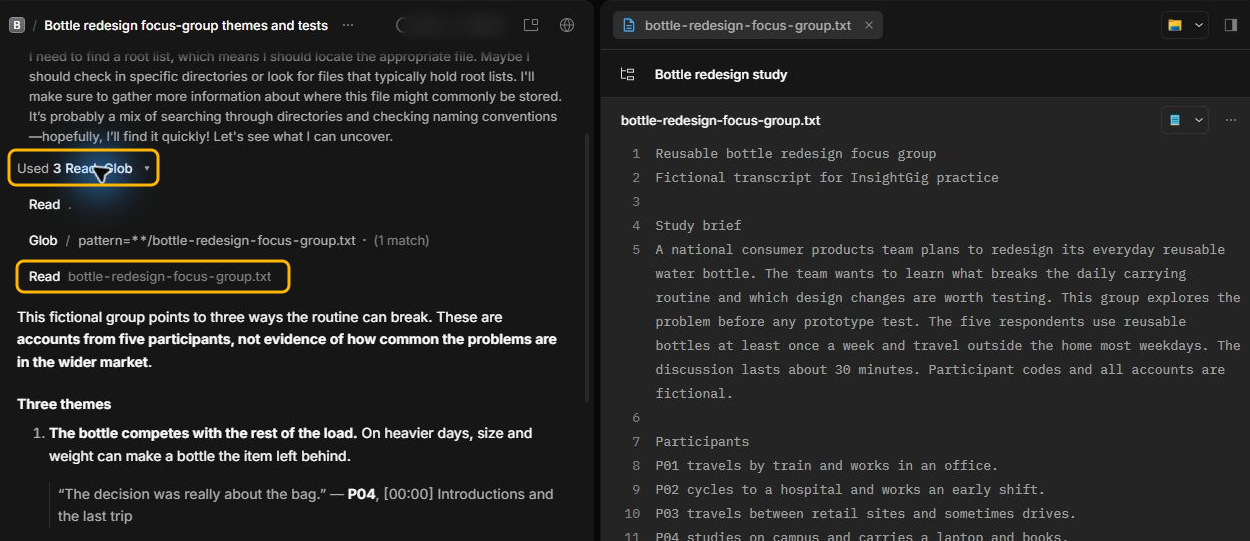
Select the activity summary between your request and the reply. Its wording and counts can vary. The screenshot shows one run labelled Used 3 Read, Glob.
-
Look for a file read that names
bottle-redesign-focus-group.txt, the transcript from the first-request exercise. Open the source to check a quote from your reply.
Select the summary again to collapse it. Open a file link in the reply when you want to check the source in your project.
Choose how much activity appears
-
Go to Home > Settings > Preferences and scroll to Timeline.
-
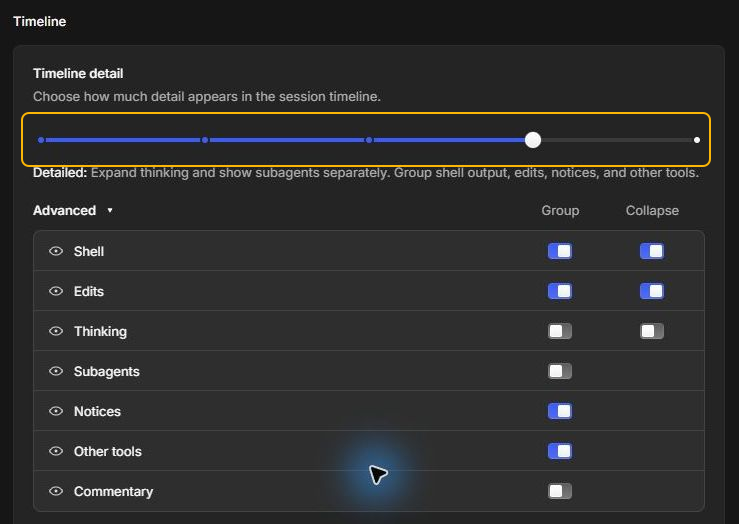
Move the Timeline detail slider. Read the description under the slider to check what your choice shows.
-
Select Back to app and open a session to see the new view.
Choose Compact to keep activity grouped with details collapsed. Choose Detailed to expand more activity as you review how the agent worked.
For more control, expand Advanced. Use the eye icon to show or hide a type of activity. Where available, use Group to put related entries together and Collapse to start with the details folded.