

Start with the symptom you see. Keep the exact message and the step that led to it if you need to report the problem.
The desktop app does not finish signing in
Open Sign in to the desktop app. Compare the code in the app with the code on the authorization page before accepting it. Start a new sign-in from the app if the code expires.
If you can sign in but see a different workspace, check the account and workspace shown in the browser. If you joined by invitation, use the email address the invitation was sent to.
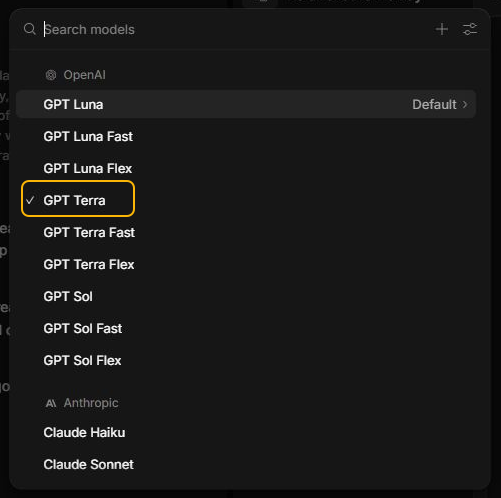
A model is missing
Open the model picker in your conversation and check Manage models.
If the model still does not appear, ask a workspace admin to check Manage model access and budgets. Name the workspace and the model you need.
A request stops because of credits or a limit
Follow Check credits and usage to check the balance in the workspace you use. If you manage the workspace and pay by card, follow Buy credits to add more.
If you have credit and the request reports a limit, check Manage model access and budgets. If someone else manages the workspace, give them the exact error and workspace name.
InsightGig cannot find a project folder
Check whether you renamed or moved the folder. Follow Reconnect a moved project to connect the existing project to its new location.
If the folder is on a drive that is disconnected, reconnect the drive and confirm the folder opens in File Explorer before trying again.
Get help with a problem that persists
Use Get support and include the message, the relevant step, and the checks you tried. Leave participant data and payment details out of the report.