

Use Devices in the Console to see which InsightGig apps are signed in. A member can manage their own devices. Workspace admins can review devices connected to the workspace.
Find the device
-
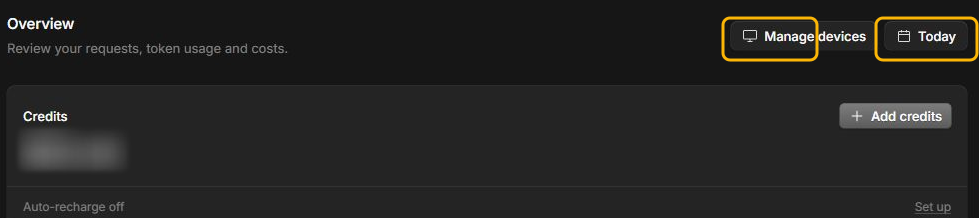
Open your workspace in the Console. On Overview, select Manage devices. You can also go to Settings > Devices.
-
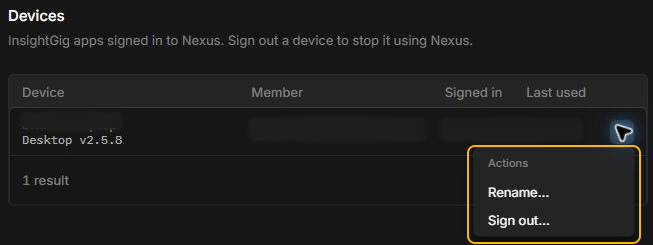
Check Device, Member, and Last used to identify the right entry.
-
Open the three-dot menu on that row. Select Rename if you want a clearer device name.
Sign out a device
- Find the device in the list. Open its three-dot menu and select Sign out.
- Check the device named in the prompt and select Sign out to confirm.
- Check the device list to confirm that the signed-out entry is gone.
If you signed out a device you still use, follow Sign in to the desktop app to reconnect it.