

Add a study folder to InsightGig so you can use its files in a session, a saved conversation. Switch projects when you move to a different study.
Before you begin
Choose the folder that holds the materials for one study. This example uses a fictional packaged snack concept test. The research team keeps its study brief and questionnaire in separate subfolders of Snack concept test.
To follow the example, download the snack concept test files. In File Explorer, right-click the ZIP file and select Extract All. Name the extracted folder Snack concept test. Check that it contains Brief, Survey, and Results before adding it to InsightGig.
Choose the study folder itself. For example, if Documents holds several client studies, open the folder for the study you want to work on.
Open the folder picker
Choose one of these ways to open the Open project window.
From Home
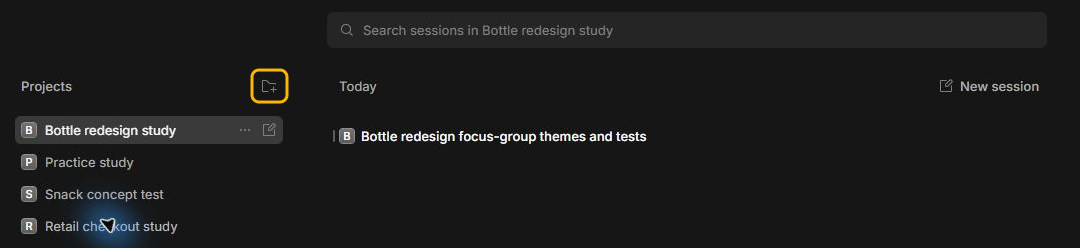
In InsightGig, go to Home. In Projects, select the folder icon with a plus sign. Its label is Add project.
From Settings
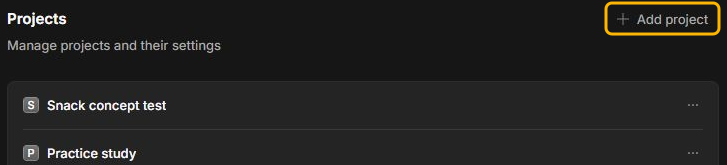
In Home, select Settings > Projects, then select Add project. Use this route when you want to edit the project’s settings after adding it.
From a new session
Use this route when you are about to start a conversation. You can choose its project before sending a request.
-
In InsightGig, select New session to open a blank conversation.
-
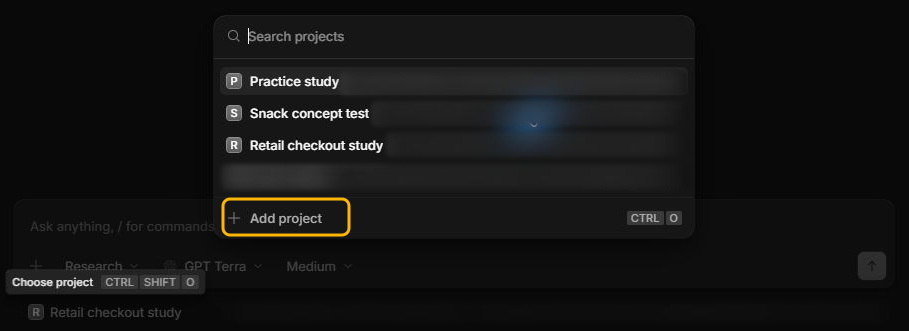
Select the current project name under the message box.

-
In the project chooser, select Add project.
Choose your study folder
-
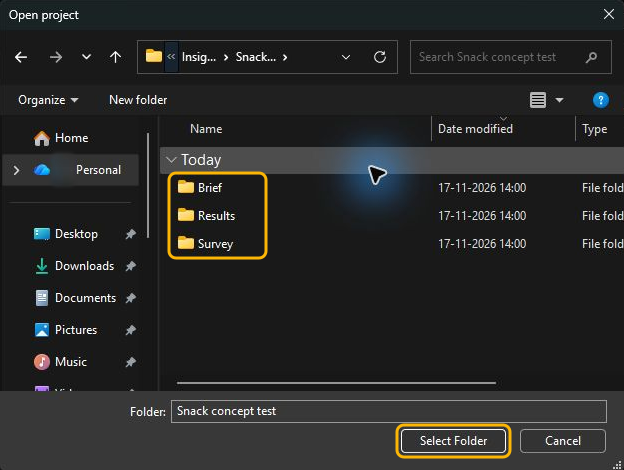
In Open project, go to your study folder. Open it to check that it contains the subfolders you expect.
For the snack study, open the
Snack concept testfolder you extracted in Before you begin. Check that it containsBrief,Results, andSurvey. If you see anotherSnack concept testfolder, open it and check inside. -
Check the folder name in the Folder box, then select Select Folder.
-
If Keep a history of this project appears, leave Include my current files selected. Select Set up project history to save a starting copy of your study files.
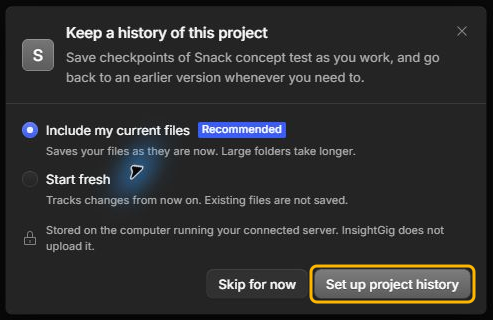
See Set up project history for the other starting options or to turn on history later.
Check where InsightGig takes you after you choose a folder.
-
From Home, the new project appears in Projects. The session search box shows the selected project’s name.
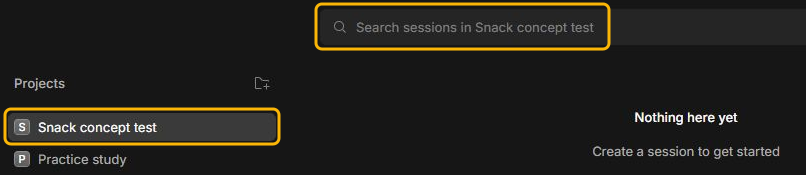
-
From Settings, InsightGig opens the project’s settings. You can check its name or change how it appears in the app.
-
From a new session, the project’s name appears under the message box. Check it before sending your request.

Switch to another project
-
Go to Home and select the study you want in Projects.
The search box shows which project’s sessions you are viewing. Select Bottle redesign study if you completed Send your first request. You should see your focus-group session.
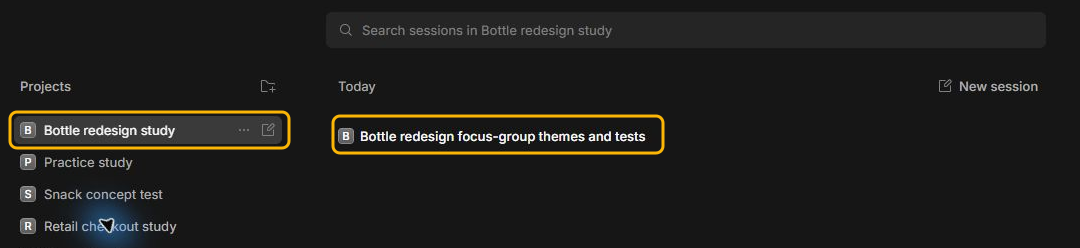
-
Open a saved conversation from that project’s list, or select New session for a separate task in the selected study.
If you already have a blank session open, select the project name under the message box. Choose an existing project from the list and confirm its name before sending.
Next steps
Use Find and preview project files to check a source in the study you selected. Follow Send your first request to analyze a practice focus group.
If you moved or renamed the study folder, follow Reconnect a moved project.