

Use Preferences and Appearance to adjust how InsightGig looks and responds. These settings apply across projects. Project settings, such as project history, belong to the individual project.
Choose a session layout
-
Go to Home > Settings > Preferences.
-
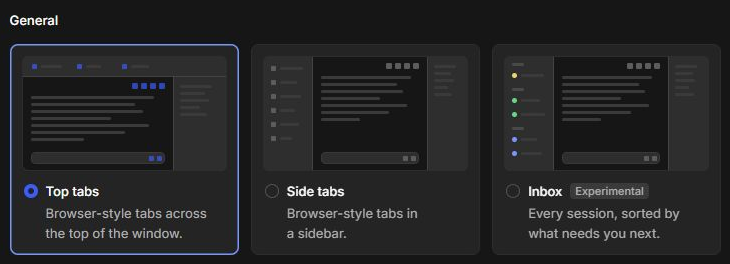
Under General, select Top tabs, Side tabs, or Inbox.
-
Select Back to app and open a session to check the layout.
Use Switch between session tabs for the tab layouts. Use Track sessions in Inbox to see work grouped by status.
Set the theme and text size
-
Go to Home > Settings > Appearance.
-
Set Color scheme to System, Light, or Dark. System follows your computer’s theme.
-
Use Zoom to change the size of app text and controls. Check the change in a conversation.
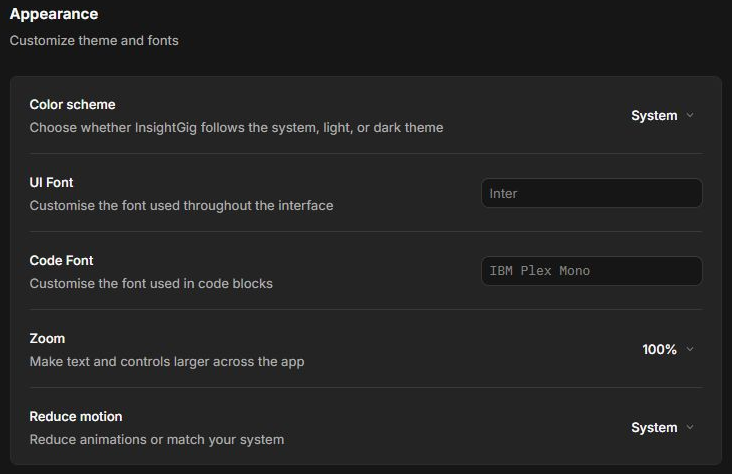
Use Reduce motion if you want fewer animations. Use UI Font for app text and Code Font for code blocks.
Choose how conversations display activity
In Preferences, scroll to Timeline. Use Timeline detail to change how much agent activity appears. Follow Read the session timeline for the activity settings.
Use Follow-up behavior under General to choose what happens when you send a message during a run. Steer sends the follow-up to the current run. Queue waits until the current run ends.
Choose where cited sources open
In Preferences > General, turn on Open web citations in default browser to open cited pages in your usual browser. Turn it off to read cited pages beside the conversation in InsightGig.

Follow Work with Agent Browser to inspect a cited page or ask Research to check its controls.
Next steps
For permission settings, follow Review requests for approval. For alerts, follow Manage notifications.