

Open a study file in InsightGig to check a source or read an output alongside your conversation.
Before you begin
Add and switch projects to open a study folder. Follow Start a session to open a conversation in that project.
For the example, download, extract, and add the Snack concept test folder using Add and switch projects. Its Results folder already contains the survey summary and findings note.
Start a session in Snack concept test. Send this request so you have a study brief link to open from the reply.
Read Brief/brief.txt and Results/concept-test-summary.csv.
Describe the research question and report the number of respondents who saw each concept.
Link the study brief and the results. Reply here without changing files.
Browse the study folders
-
In your InsightGig conversation, select the folder icon labelled Open project files. The panel shows the current project’s folders and files.

-
Select the arrow beside a folder to see its contents. In this example, expand
Results.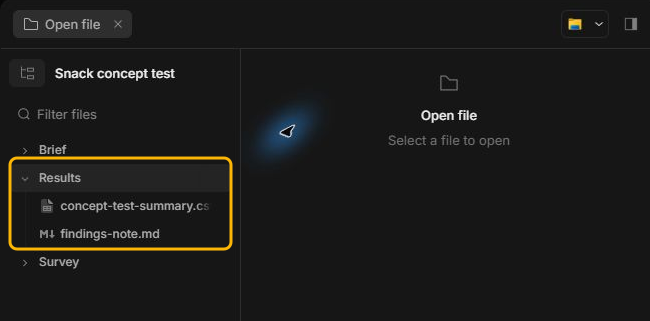
-
Select a file to open it in a preview tab. Check the tab name to make sure you opened the intended file.
Filter by filename
Use Filter files when you know part of the name and want to find the file across the study folders.
-
In the file panel, type part of the filename in Filter files. For this example, type
summary.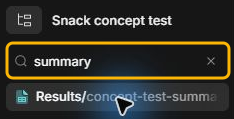
-
Check the folder shown with the match, then select the file. The example opens
concept-test-summary.csvfromResults.
If you see no match, try a shorter part of the filename and check the project name. Use the clear icon in Filter files to bring back the full folder list.
The title-bar magnifier opens Search sessions. To find a study document by filename, use Filter files in the file panel.
Open a source from a reply
Select the reply’s link to Brief/brief.txt to check the research question. The screenshot shows the link as Brief. Its label can vary. If the link is missing, open Brief/brief.txt from the file panel.

Read and switch between previews
-
In the file panel, select a tab to return to an open file. For this example, open
Brief/brief.txtandResults/concept-test-summary.csvfirst if either tab is missing.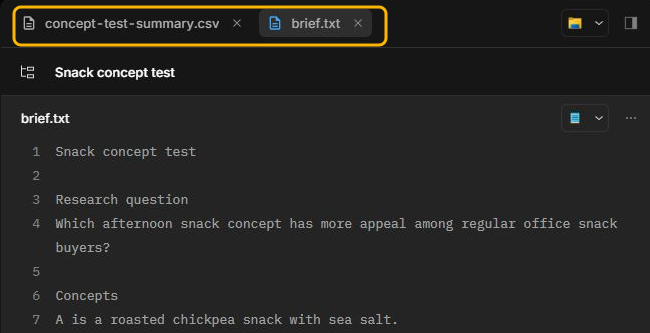
-
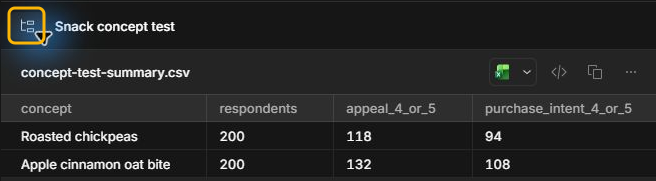
To give the preview more space, select Toggle file tree beside the project name. Select it again to show the folder list.
The wider preview shows the sample size, appeal ratings, and purchase intent counts. The study used separate groups of 200 respondents per concept.
-
Select the close button on a tab when you finish reading. The file stays in your study folder.
To close the whole panel and return to the full conversation, select Hide panel.
Find the file in Windows
Use either path to open the file’s folder in File Explorer.
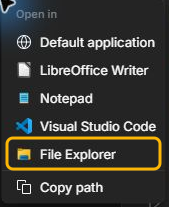
From the file list
Right-click the file and select File Explorer. The example opens the Results folder for findings-note.md.
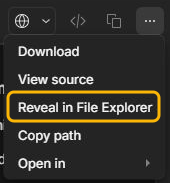
From a preview
In the file preview, open the three-dot File actions menu and select Reveal in File Explorer. To open the file itself in another app, use Open in.
Next steps
Compare what the reply says with what the source file shows. Use Give agents context to give InsightGig the file and the check you want it to make.