

Keyboard shortcuts let you perform frequent actions without opening a menu. Use the list in your app to check the current keys, especially on a computer where shortcuts have been customized.
Find a shortcut
-
Go to Home > Settings > Shortcuts.
-
Enter part of the action name in Search shortcuts. Check the keys shown for the matching action.
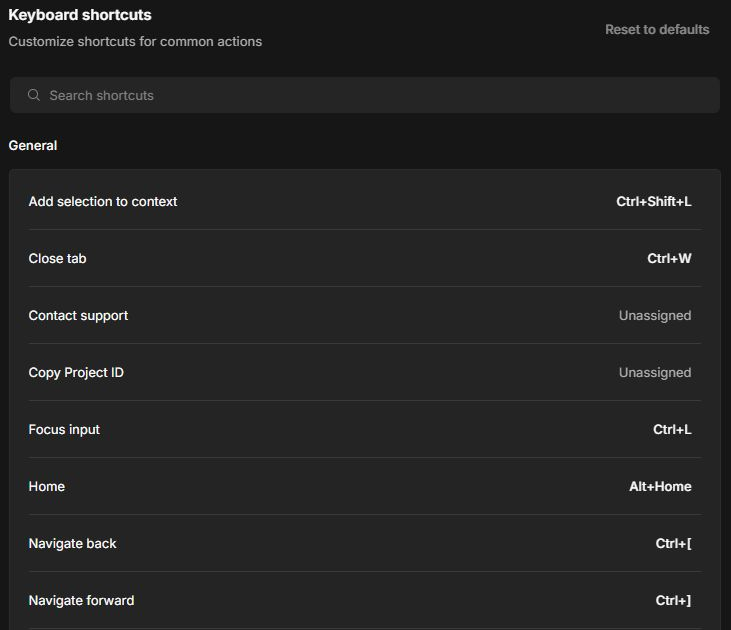
-
Select Back to app and try the shortcut in a session or on Home, depending on the action.
| Action | Windows keys shown in the example |
|---|---|
| Go to Home | Alt + Home |
| Focus the request box | Ctrl + L |
| Close the current tab | Ctrl + W |
| Add a selected file line to a request | Ctrl + Shift + L |
To add part of a file, select its line number first. See Give agents context.
Change a shortcut
-
In Shortcuts, select the current keys for the action. For an action without a shortcut, select Unassigned.
-
When the app shows Press keys, press the combination you want to use.

-
Check that the new keys appear on the row, then try them in the app.
Use Reset to defaults if you want to restore the original shortcuts across the app. Review any shortcuts you still rely on before resetting the list.