

Extensions give InsightGig extra ways to work. A skill provides instructions for a task such as creating a presentation. An MCP connection gives the agent access to another tool or service.
Review extensions available to the app
-
Go to Home > Settings > Extensions.
-
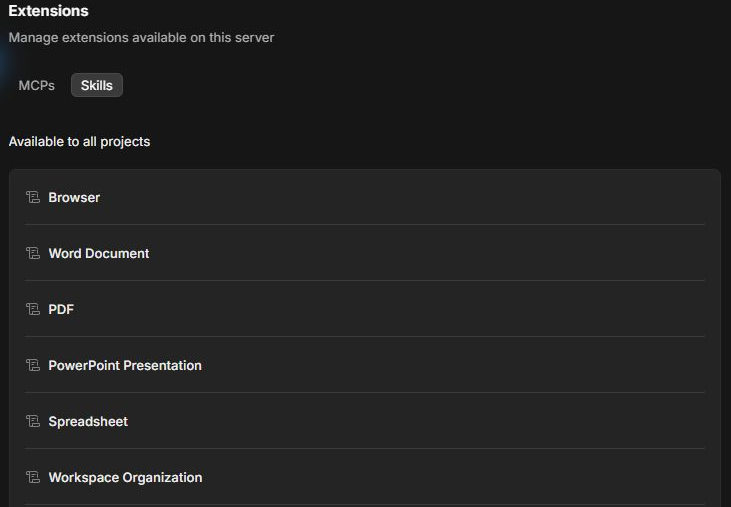
Select Skills to see available skills such as PowerPoint Presentation, Spreadsheet, or Browser.
-
Select MCPs to see external connections configured for the app. If the list is empty, ask whoever manages the app whether you need a connection for your task.
When you want to use a skill in a conversation, type @ and search for its name. For an example, follow Work with Agent Browser.
Check extensions for a project
-
Go to Settings > Projects and open the three-dot menu for the project.
-
Select Edit, then select Extensions.
-
Check MCPs and Skills for that project. Check the project name before relying on a connection or skill.
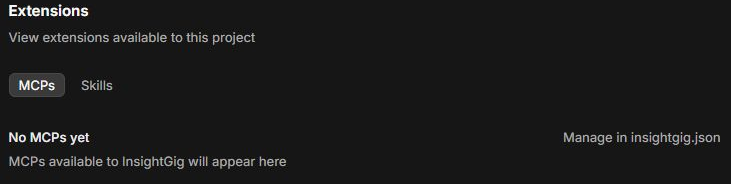
Manage in insightgig.json points to the configuration file used for connections. Ask the person who manages your InsightGig setup to help configure a connection and confirm what data it can access.