

Reconnect a study after you move or rename its folder in Windows. This brings its saved conversations and project history to the new location.
In this example, a fictional grocery retailer’s Retail shopper journey folder was renamed to Retail checkout study.
Prepare a practice project
To try the move, extract a separate copy of the retail checkout practice files into Retail shopper journey. Keep that folder somewhere you can rename it to Retail checkout study without replacing another folder.
Add the Retail shopper journey folder using Add and switch projects. Follow Set up project history and choose Include my current files.
Start a session in Retail shopper journey and paste the interview questions prompt from Start a session. Here, send it in Retail shopper journey, which contains the same study-brief.txt.
After the reply appears, close the session tab. In File Explorer, rename the folder to Retail checkout study. Use the steps that follow to bring the session and history to its new location.
Open the folder at its new location
-
In Home, go to Settings > Projects, then select Add project.
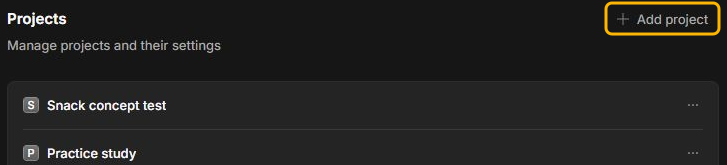
-
In Open project, find the moved or renamed study folder. Check its name in Folder, then select Select Folder.
In the example, choose
Retail checkout study, the folder you renamed in Prepare a practice project.
-
If Keep a history of this project appears, select Skip for now. The new project needs to be free of project history to receive the previous project’s checkpoints.
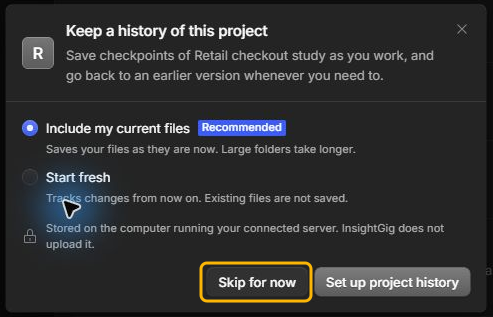
The new project’s General settings open. If you already added the folder from Home, right-click the new project in Projects and select Edit project.
Reconnect the previous project
-
In the new project’s General settings, find Reconnect a previous project and select Choose project.
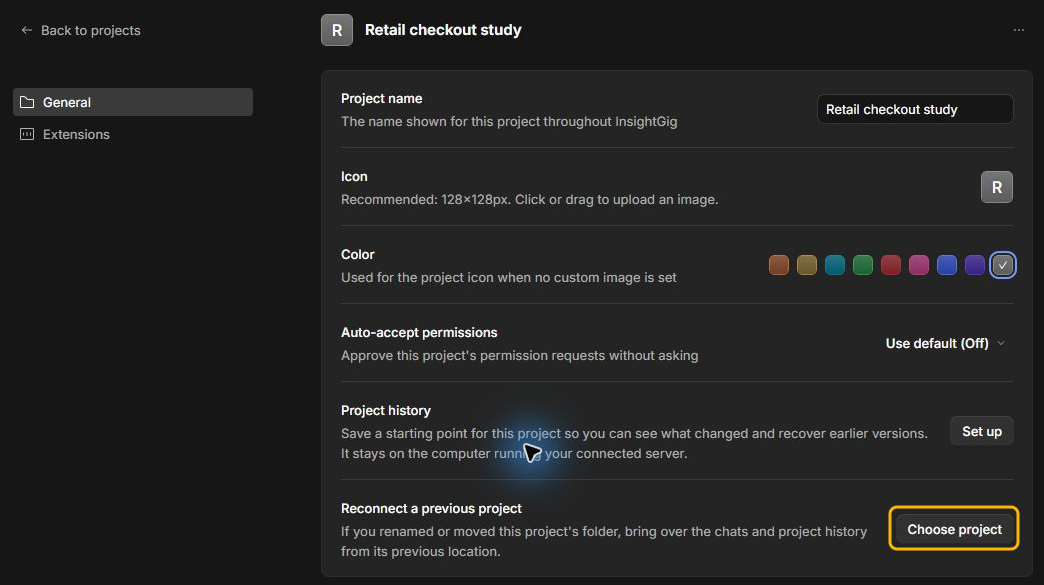
-
Select the old project name. In this example, choose Retail shopper journey.

-
Check the previous folder in the confirmation, then select Reconnect.
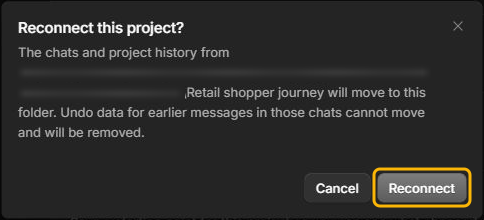
If the old project had history, the new project’s settings should show Project history is on.

Check your conversations and files
-
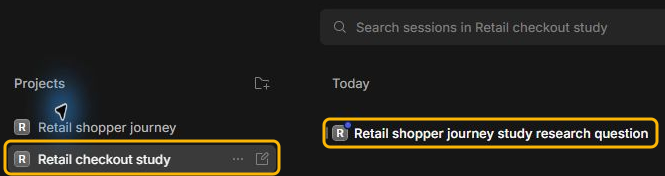
In Home, select the project with the new folder name. Check that your earlier conversations appear.
-
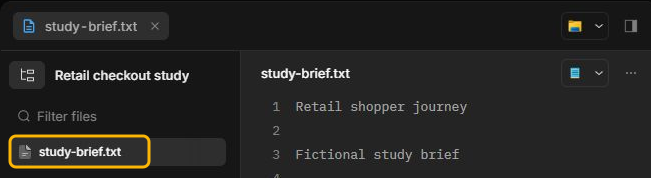
Open an earlier conversation and check its messages. Open a source from the new project folder to confirm it is available.
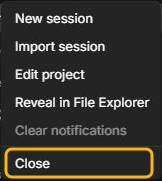
If the old project entry still appears in Home, you can close it after checking the new one. Right-click the old project and select Close.
Check a missing previous project
InsightGig offers previous projects whose old folder location is missing and that have saved conversations or project history.
If you copied the study and the original folder still exists, open the original project to find its saved conversations. If InsightGig reports that some chats could not move, return to Choose project and try again.
Next steps
Continue a saved conversation from the new project. Use Find and preview project files to check its sources before sending another request.