

Automatic recharge adds credits when the workspace balance falls below an amount you choose. It uses the workspace payment method. You need the Admin role and card billing.
Add a recharge rule
-
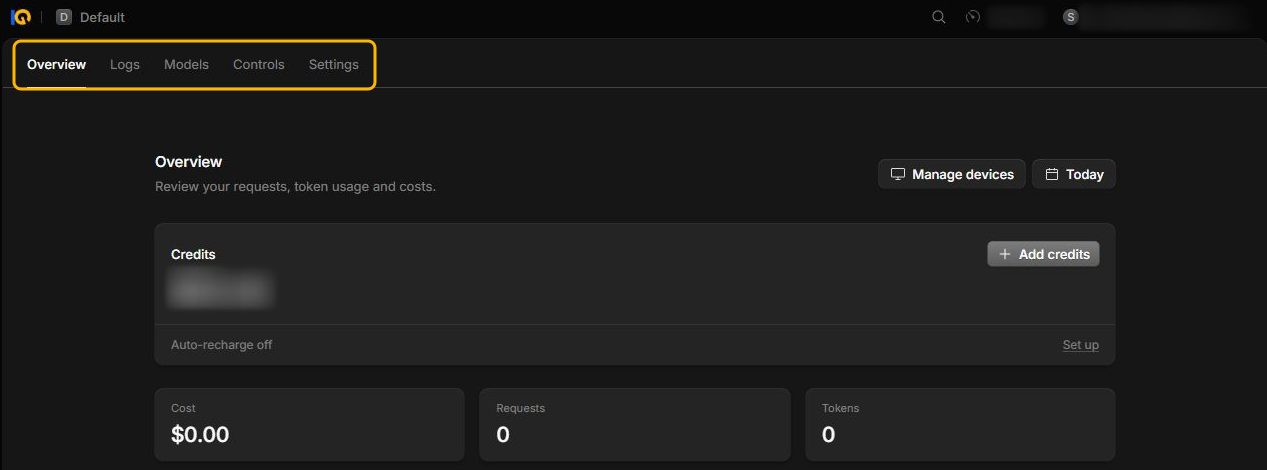
In your workspace in the Console, go to Settings > Billing. In Credits, find Auto-recharge and select Add rule. You can also open Set up from the Credits card on Overview.
-
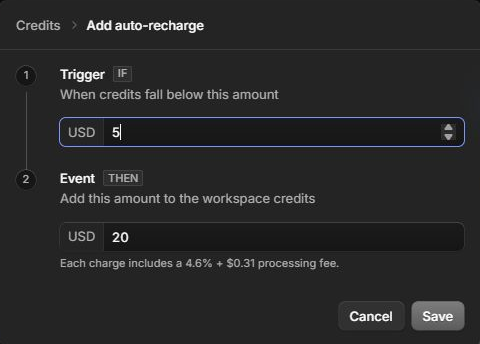
Enter the balance that should trigger a recharge in Trigger. Under Event, enter how much credit to add each time.
-
Check the amounts and fee. Select Save when you are ready to allow future charges.
Check the rule shown under Auto-recharge to confirm the trigger and credit amount.
Change or turn off the rule
- Return to Settings > Billing and select Edit beside Auto-recharge.
- Change the Trigger or Event amount. To stop future recharges, turn off Enable Auto Reload.
- Select Save. Check the resulting rule or off status before leaving Billing.
For one-time funding, see Buy credits.