

A session is a saved conversation in an InsightGig project. Start one when you have a separate task that uses the same study files.
For example, a grocery research team may use one session to review a study brief. They can start another to draft questions for follow-up interviews.
Before you begin
Follow Sign in to the desktop app and Add and switch projects if you need to set up the app. The example uses the fictional Retail checkout study project.
To follow along, download the retail checkout practice files. In File Explorer, right-click the ZIP and select Extract All. Name the extracted folder Retail checkout study and check that it contains study-brief.txt.
Open Retail checkout study using Add and switch projects. To try switching projects, also download and add Snack concept test using Add and switch projects.
Open a blank session
Choose a starting point based on where you are in the app.
From Home
-
In InsightGig, go to Home and select the study under Projects.
-
Check the study name in the session search box, then select New session.
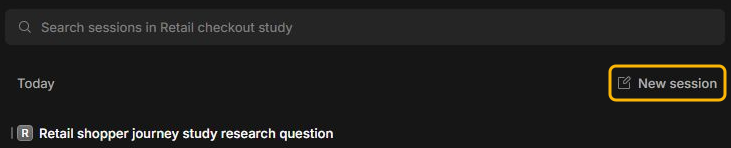
You can also right-click the study name under Projects and select New session from its menu. This opens the draft for that study directly.
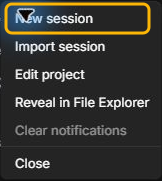
From an open conversation
Select the plus button labelled New session in the tab bar. With Top tabs, it sits in the row of conversation tabs. Check which project the blank session uses before writing a request.

Check or change the project
The project name appears under the message box. Check it before sending so the request uses the intended study files.

-
To use a different study, select the current project name under the message box.
-
In Search projects, type the study name and select the matching project. This example switches the blank session to Snack concept test.
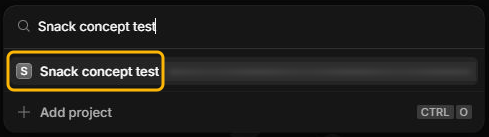
Check that the name under the message box has changed.

If your folder is missing from the list, use Add project in the chooser. See Add and switch projects.
Send your first request
InsightGig starts with a model and thinking level selected. The model answers your request. The thinking level controls how much work it does before replying.
The request below uses the study-brief.txt you extracted in Before you begin. If you switched to Snack concept test, use the project picker to switch back to Retail checkout study before sending it.
-
In the blank session for your study, type the task in the message box. Name the source file and say what the answer should include.
Use this prompt for the checkout study. For your own study, adapt the filename and task.
Read study-brief.txt. Draft three neutral interview questions for shoppers who left their first online grocery order before checkout. For each question, say what it would help the research team learn. Reply here without changing any files. -
Select the up arrow labelled Send. Your request appears in the conversation.

While InsightGig works, the send arrow becomes a square button labelled Stop.

Check the response and saved session
-
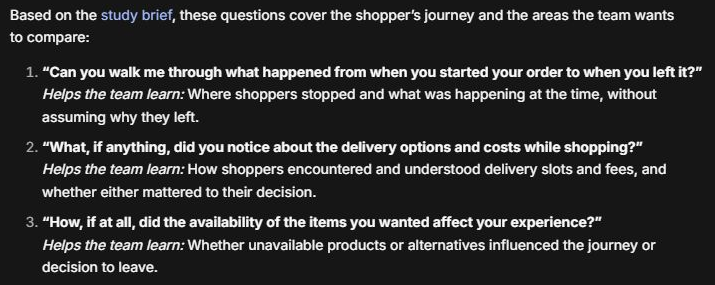
Read the reply and check it against your brief. For this study, check that each question helps explain where or why shoppers left.
The screenshot shows one reply that covers the order process, delivery options, costs, and product availability. Your questions may differ. Check that they fit the brief and avoid assuming what happened to the shopper.
-
Go to Home and select the study under Projects. The new session appears with a title based on the task, alongside earlier conversations.
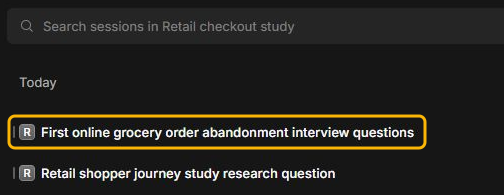
Open the saved title to return to its request and reply.
InsightGig names the conversation from the request, so your title may differ from the screenshot. If it is unclear, open the conversation and check the original request.
Next steps
Use the same session to refine the questions after reviewing them. Follow Find and reopen sessions to return to the conversation later.