

The InsightGig Console is the website for managing your account, workspace, and credits. Use it when you need to check access, investigate usage, or manage billing.
Open the Console page you reached after signing in. If you’re setting up your account, follow Check that you reached the Console. Check the workspace name beside the InsightGig logo. This is the workspace whose credit and usage you see.
Find the page you need
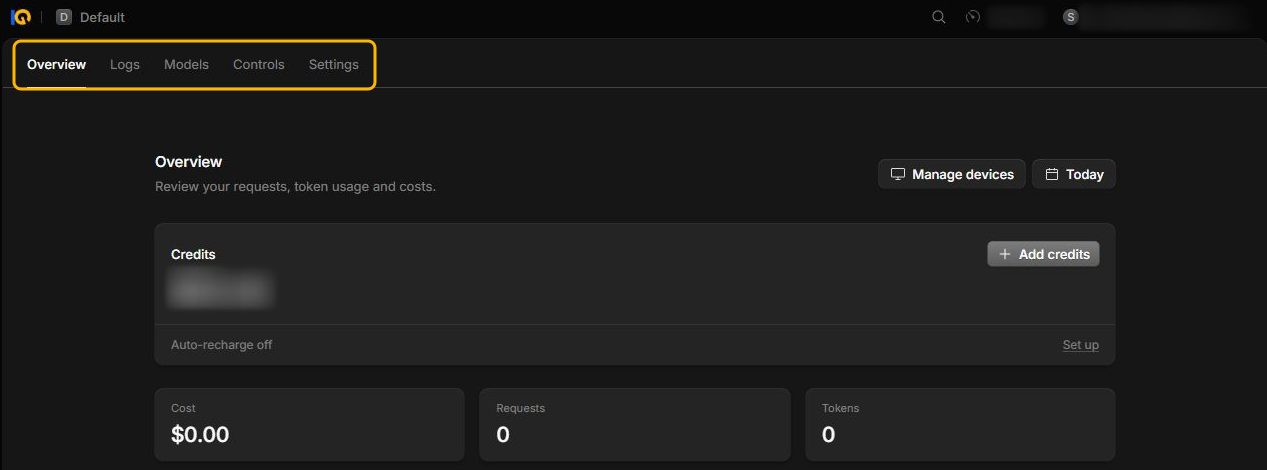
| Tab | When to use it | Where to start |
|---|---|---|
| Overview | Check the balance before a study. After a run, compare costs and request counts by time, project, or model. | Check the credit balance or Check usage for a time range. |
| Logs | Find one request to explain a charge or see whether it failed. Narrow the list by time and the available filters. | Find an individual request. |
| Models | Check which models are enabled, what they support, and what they cost. A model is the system that reads a request and generates a reply. | Check a model in the Console. |
| Controls | As an admin, set a monthly spending limit, reserve a model, or apply a policy to selected members. | Manage model access and budgets. |
| Settings | Open Billing for credits and invoices, General for the workspace name, Members for access, or Devices for signed-in apps. | Usage and billing or Manage your workspace. |
Members can use the workspace and manage their own signed-in devices. Workspace admins manage members, models, policies, and billing.
If you signed up on your own, you can use the admin settings yourself. Start with Overview to check your credit before sending a request. Use Logs afterwards if you need to find that request.
Check a model in the Console
In Models, search for the model by name. Check Enabled to see whether the workspace allows it. The catalog also shows features and rates.
Open Agent defaults on the same page to check which model and thinking level an agent starts with. To choose a model for your current desktop conversation, follow Choose a model and thinking level.
If an enabled model is missing in the desktop app, follow Fix common problems. If a Console tab or control is missing, check the workspace name and role.