

Use InsightGig to build a spreadsheet from a set of documents. Describe the decision, source files, calculations, and inputs you want to change later.
This example compares three fieldwork proposals for a household shopping study. The brief requests 180 interviews across Bengaluru, Chennai, and Hyderabad.
The workbook brings quoted rates, scope details, planning assumptions, and calculated budgets together. All documents and prices in this example are fictional.
Your workbook may use different sheet names and cell positions. With the sample documents and the same calculation rules, the budget figures should match this guide.
Before you begin
Have these ready:
- A connected project folder containing readable source documents.
- Your required output, comparison rules, and any existing spreadsheet template.
- Instructions for conflicting figures, missing costs, and assumptions requiring your approval.
- A connected Nexus account with sufficient balance and available spending limits.
Use Add and switch projects to open your project. You can create a new workbook directly from documents; an existing template is optional.
Have Microsoft Excel available to follow the workbook review and input changes shown here. The example’s calculations and chart are checked in Excel.
If you provide a template, identify the layout and formulas to preserve. Request a new output file so the template remains available.
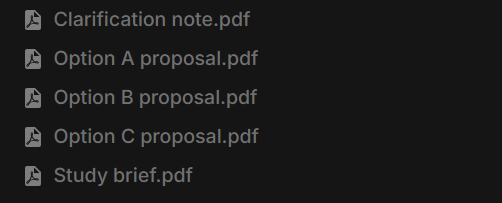
To follow this example, download the five source documents. Extract them into a folder called Fieldwork budget, then open that folder in InsightGig.
| Document | What it contributes |
|---|---|
Study brief.pdf |
Interview counts, incentive, budget ceiling, and illustrative calculation rules. |
Option A proposal.pdf |
City rates, fixed charges, delivery timing, and payment terms. |
Option B proposal.pdf |
Another set of rates, with processing included in setup. |
Option C proposal.pdf |
Rates and fixed charges, with travel still unquoted. |
Clarification note.pdf |
A revised rate and a separate travel planning allowance. |
The brief uses an illustrative 18% tax and 10% contingency on service costs. Follow your own approved budget and tax instructions for a real study.
Prepare the workbook request
-
In your project, select the folder icon labelled Toggle file tree and check the documents.
Keep the brief, proposals, and clarifications together. Check that the agent can distinguish the original proposal from any revision.
This project starts with five PDFs and no spreadsheet. InsightGig creates the workbook during the task.
-
Select New session, then choose Plan in the message box.
In Ask anything…, explain what you need to compare and which documents to use. For the practice project, send this request.
Compare the three proposals in an Excel budget using Study brief.pdf and Clarification note.pdf.
Include linked formulas, editable inputs, a comparison chart, and checks.
Propose sheets and calculation rules before saving Outputs/Fieldwork budget comparison.xlsx.
Wait for my approval before creating the workbook.
Name the editable inputs and calculated outputs. Ask for linked Excel formulas so results can update when inputs change.
In this example, the request specifies city costs, option totals, cost per interview, remaining budget, a chart, and checks. It requests approval before creation.
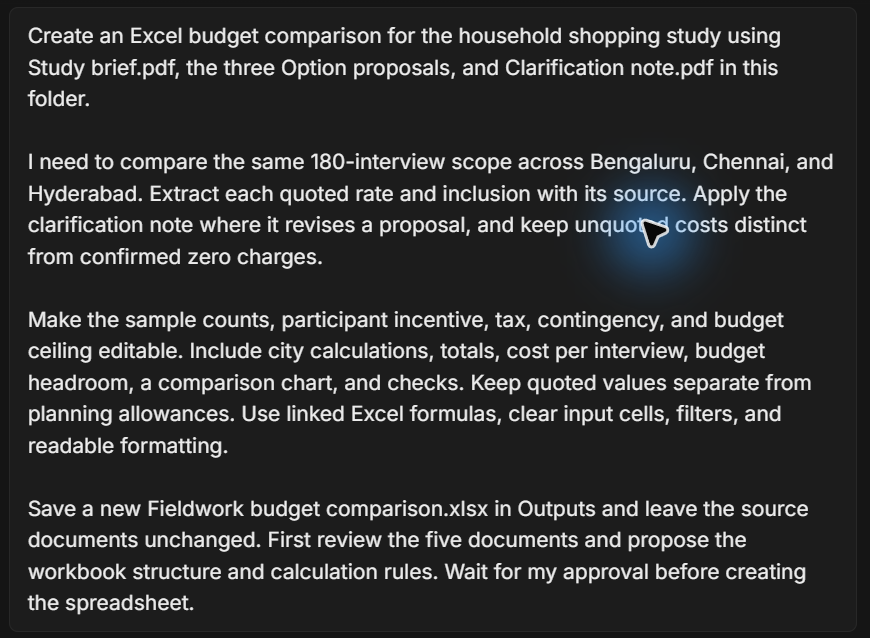
You should receive a review of the source documents and a proposed approach. Use Choose an agent mode for the differences between Plan and Research.
For your own study, replace the document names and deliverable. The screenshot shows a longer version of the request.
Before approving the plan, confirm these requirements:
- Compare the same interview scope, using the clarification where it replaces a quoted figure.
- Keep source references, quoted charges, missing costs, and planning allowances distinguishable.
- Make planning inputs editable, with linked totals, cost per interview, and budget headroom.
- Include the comparison chart and calculation checks, then save a separate workbook in
Outputs.
Budget headroom means the amount remaining below the ceiling. Specify the currency and whether your ceiling includes incentives, tax, and contingency.
Review and approve the plan
-
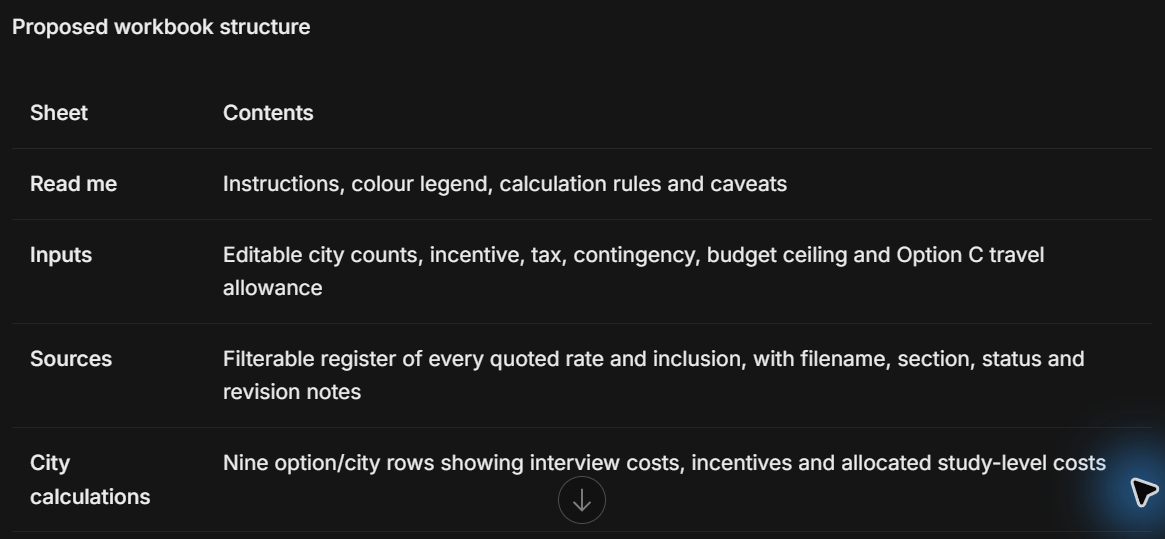
Read the proposed workbook structure in the conversation.
Check that each sheet has a purpose and that the calculations answer your decision. A workbook is the Excel file; its sheets appear as tabs.
The approved plan uses seven sheets. It separates editable assumptions, source evidence, calculations, comparisons, and checks.
Ask for changes before creation if a required calculation or source reference is missing.
-
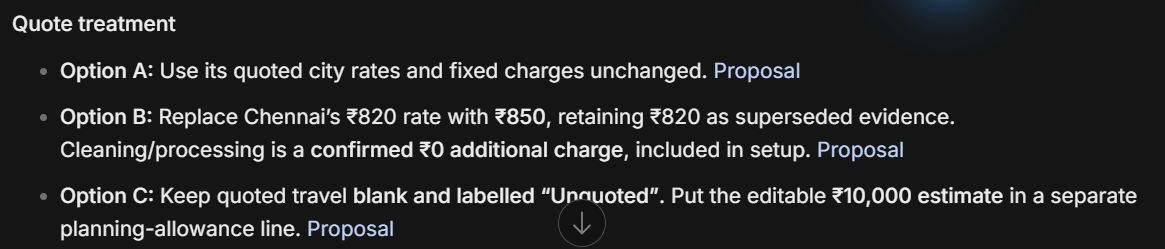
Check how the plan handles conflicting values, included services, and missing charges.
Here, the clarification replaces Option B’s Chennai rate of ₹820 with ₹850. The original rate remains recorded as superseded evidence.
Option B’s additional processing charge is a confirmed zero because setup includes that work. Option C’s travel charge remains unquoted.
The plan keeps Option C’s ₹10,000 allowance separate and labels it as an estimate. It follows an explicit planning instruction in the clarification note.
-
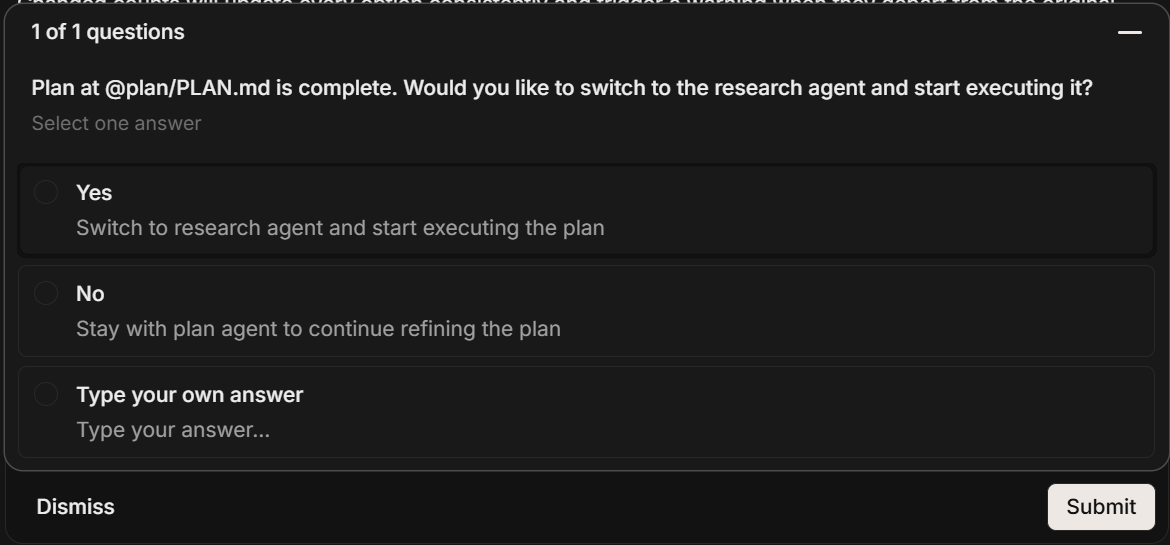
Approve the reviewed plan in the conversation, then confirm the handover to Research when prompted.
If a handoff card appears, choose Yes and select Submit. You can also switch to Research and send approval in the same conversation.
You should see Switched to Research agent. Research begins creating the workbook from the approved approach.
For a change, explain which assumption, calculation, or sheet needs revision before approving execution. Use Plan and run a task for the handover controls.
You should have an agreed workbook structure and explicit rules for each source issue. The number and names of sheets can differ with your request.
| Planned sheet | Purpose in this example |
|---|---|
Read me |
Explain how to use the workbook, its calculation rules, and limitations. |
Inputs |
Hold editable counts, rates for planning, budget ceiling, and travel allowance. |
Sources |
Record extracted figures, inclusions, filenames, section references, and revision notes. |
City calculations |
Calculate each option’s costs for each city. |
Option budgets |
Combine service costs, allowances, tax, contingency, and incentives. |
Comparison |
Show linked totals and a chart alongside delivery, payment terms, and travel risk. |
Checks |
Identify calculation differences, changed scope, and missing quote information. |
For this study, the plan calculates interview services from city counts and quoted rates. It adds fixed services and the separate travel allowance once.
Tax and contingency each use pre-tax planning service costs. Participant incentives use interview count multiplied by the incentive rate and appear once in each option’s total.
Study-level charges allocated across cities are planning allocations. They do not become city-specific quotations because the workbook displays them beside a city.
Follow workbook creation
Keep the conversation available for questions while Research creates the workbook. Resolve an unclear source or calculation before accepting an assumed value.
In this example, the conversation shows a Spreadsheet activity and Quant work named Build approved budget workbook. A task list tracks creation, checking, and delivery.
The activity can continue while calculations and file compatibility are checked. A file appearing in the folder does not establish that these checks have finished.
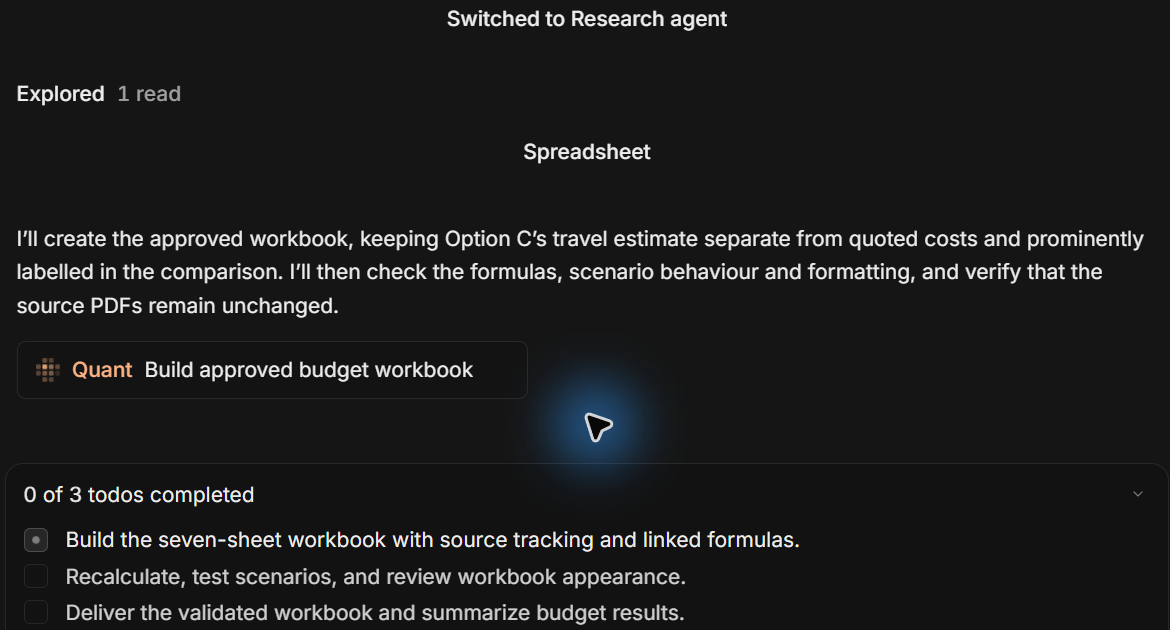
Wait for the completion message and read any limitations before using the output. Ask the agent to resolve failed calculations or an unreadable file.
Open and review the workbook
-
In InsightGig’s file panel, expand
Outputsand selectFieldwork budget comparison.xlsx.The workbook opens in a preview tab. Follow Find and preview project files to open it in Excel or find it in File Explorer.
Start with the sheet that explains how to use the workbook. In the example, Read me lists the editable cells, calculation rules, scope, and unresolved travel charge.
-
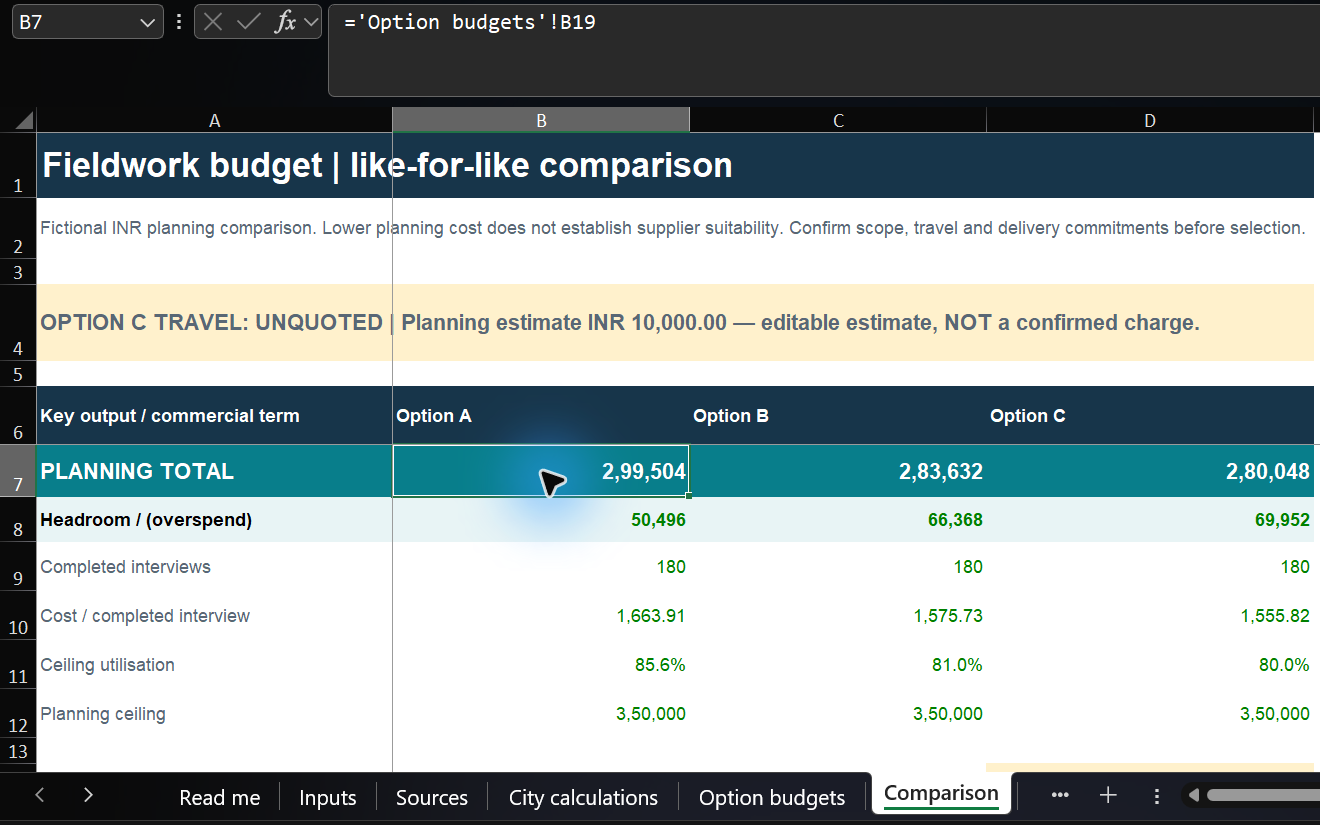
In Excel, open the sheet that compares the three options. In the example, Comparison shows totals and remaining budget for the same interview scope.
Check Completed interviews before comparing costs. All three options should use 180 interviews in the original example.
Cost / completed interview divides the complete planning total by interviews. It includes fixed charges, incentives, illustrative tax, and contingency.
Select a planning total to inspect its formula. In the example, cell B7 links to the corresponding total in Option budgets. Check the link for the same total wherever it appears in your workbook.
-
Look for delivery, payment terms, travel status, and the cost chart. In the example, these appear below the totals on Comparison.
Compare these terms against your study requirements. The example lists 15, 18, and 20 working days after questionnaire approval for Options A, B, and C.
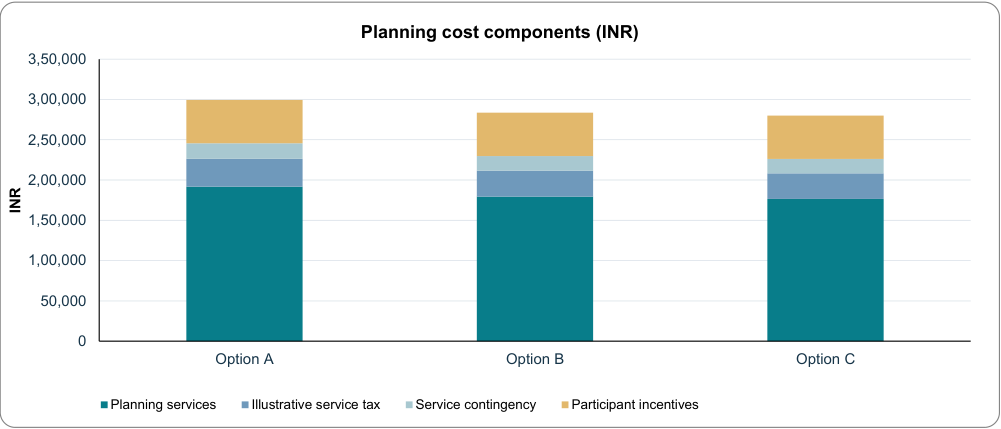
The chart separates planning services, illustrative service tax, contingency, and incentives. The ceiling is a spending reference; it is not another cost component.
This image shows the chart exported from the example workbook. Its values link to the workbook’s budget calculations.
You should have a comparison you can trace to sources and calculation sheets. Confirm unresolved costs and delivery commitments before choosing an option.
For the original 180-interview scope, the workbook shows:
| Option | Planning total | Cost per interview | Headroom against ₹350,000 |
|---|---|---|---|
| A | ₹299,504 | ₹1,663.91 | ₹50,496 |
| B | ₹283,632 | ₹1,575.73 | ₹66,368 |
| C | ₹280,048 | ₹1,555.82 | ₹69,952 |
Option C includes an estimated ₹10,000 travel allowance. Its actual travel charge remains unquoted, so this total is a planning figure.
To follow a calculation, use the sheets with the cost breakdown and the city rates. In the example, these are Option budgets and City calculations. Use the sheet with the supporting documents and quoted figures to check the inputs.
For example, Option A’s interview services equal 60 × 820 + 60 × 860 + 60 × 800, or ₹148,800. Fixed services bring planning services to ₹191,800.
Add ₹34,524 tax, ₹19,180 contingency, and ₹54,000 incentives to reach ₹299,504. Subtract that total from ₹350,000 to get ₹50,496 headroom.
In the sheet that records the evidence, match the filename and section heading to the PDF. Check both the original and effective amount when a clarification changes a rate.
The ₹820 original and ₹850 revised Chennai rate belong to Option B. A blank Option C travel quote must remain distinguishable from confirmed zero processing charges.
Try a different interview count
Save a separate scenario copy in Excel before experimenting if you need to retain the original comparison. Change designated inputs, then review the linked results.
-
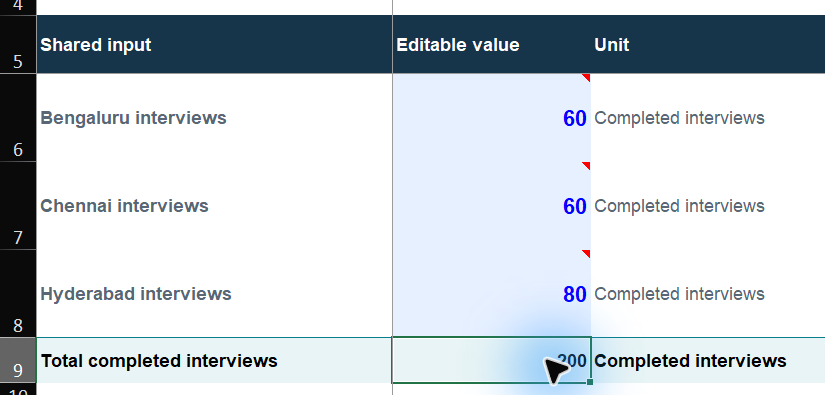
In Excel, open the sheet with editable interview counts. In the example, this is Inputs. Find Hyderabad interviews and change
60to80. The value appears in cell B8 in the screenshot.Keep Bengaluru and Chennai at
60. The calculated Total completed interviews becomes 200.The example identifies editable values with input labels and blue text. Leave calculated totals and source evidence intact.
On the same sheet, look for the incentive, illustrative tax, contingency, planning ceiling, and Option C travel allowance.
-
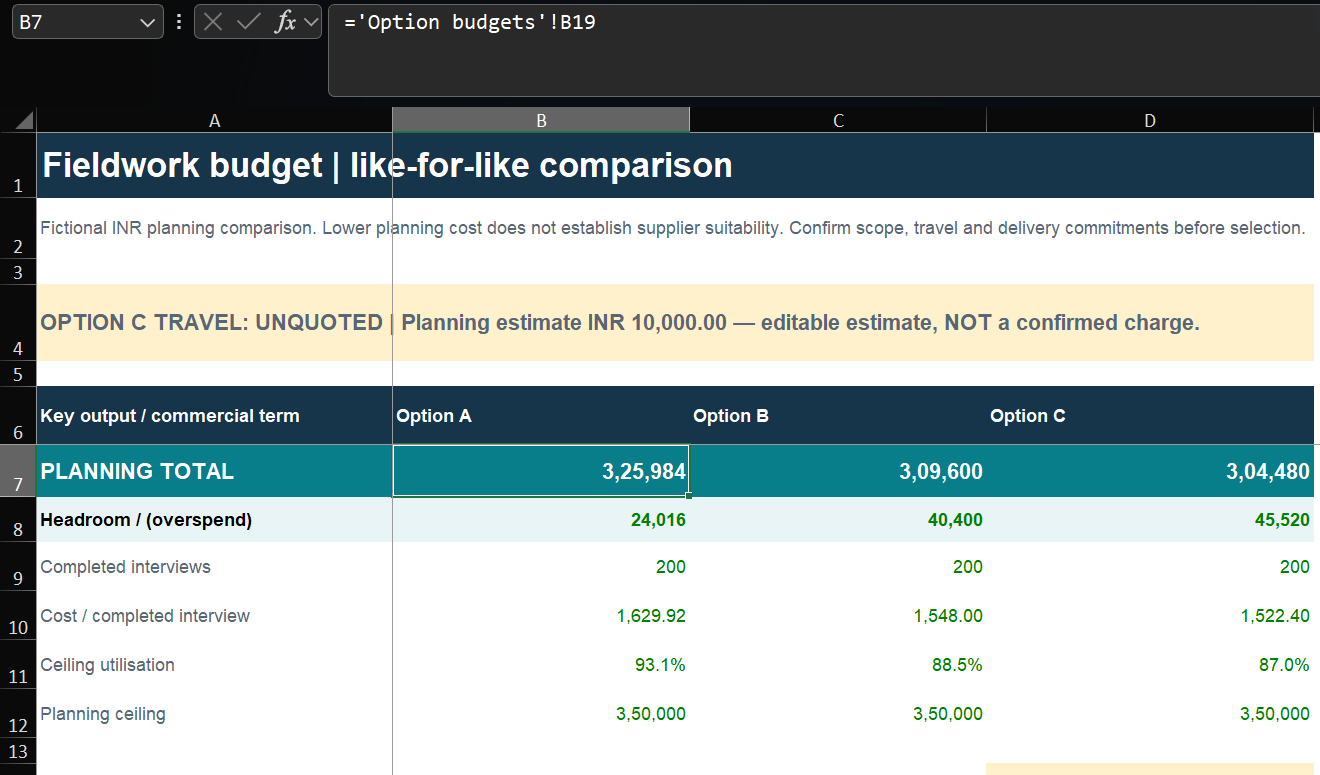
Return to the sheet comparing the options. Check that every option uses 200 interviews.
The totals update to ₹325,984, ₹309,600, and ₹304,480. The example keeps fixed quoted charges and the travel allowance unchanged.
Changing only the ceiling changes headroom and ceiling utilisation. It does not change the underlying costs.
-
Open the sheet with the calculation checks and read the warnings before using the revised budget. The example uses Checks.
Look for a warning that 200 interviews exceed the approved 180-interview brief. It appears as Original brief scope in the example. Reconfirm quoted charges and delivery when changing scope.
This scenario has two warnings: changed scope and Option C’s unquoted travel. A warning can remain even when the arithmetic checks pass.
Restore Hyderabad interviews to
60when you want the original example again. Check that the total returns to 180.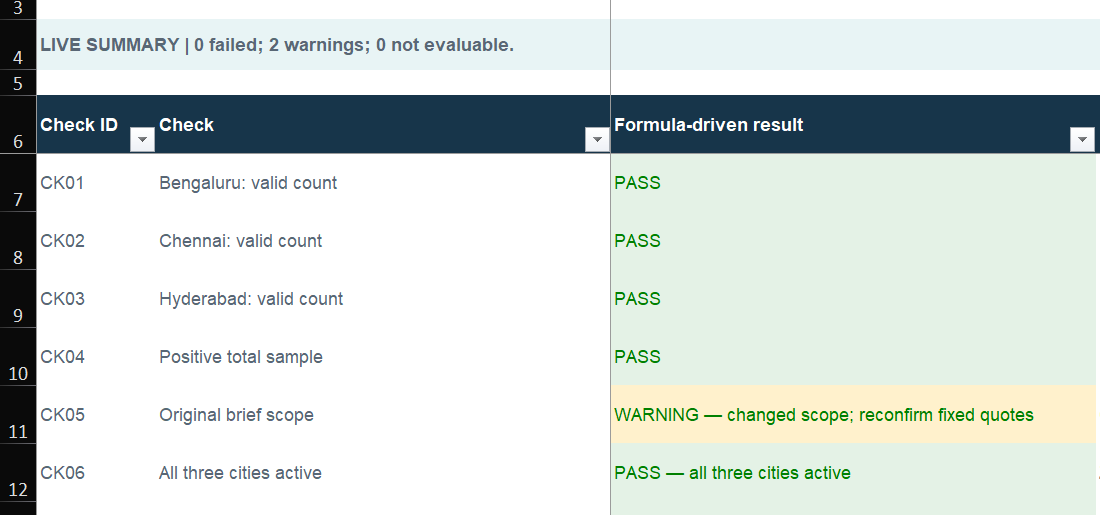
You should see costs respond to input changes while unresolved source issues remain visible. The workbook does not obtain a fresh quotation when you change an input.
The checks in this workbook use these results:
| Result | Meaning | What to do |
|---|---|---|
PASS |
The specific check’s condition holds. | Still review source accuracy and assumptions. |
WARNING |
A planning caveat needs attention, such as changed scope or unquoted travel. | Read the explanation and confirm the outstanding item. |
FAIL |
An input or calculation check fails. | Correct the input or ask the agent to investigate before sharing. |
NOT EVALUABLE |
The check cannot produce a meaningful result, such as a ratio with zero interviews. | Supply a usable input before interpreting that result. |
A passing calculation check cannot establish that a proposal includes every required service. Confirm scope, exclusions, currency, and tax treatment against the actual documents.
Continue in the same conversation
For a later revision, name the workbook and describe the required change. Request a new version when you need to retain the previous comparison.
If a new proposal arrives, add the document to the project and identify which figures it replaces. Ask the agent to update evidence and dependent calculations.
Changing a source PDF does not establish that the existing workbook has incorporated the change. Request and review the update explicitly.
For example, send this follow-up after saving a revised quote:
Update the budget comparison using the revised Option C proposal.
Keep revision notes and save a new version.
Recheck the calculations and chart, then summarize changes and unresolved costs.
Review which rates and terms the revision replaces. Replace the travel allowance only when the document confirms the charge.
Close the workbook in Excel before asking InsightGig to revise it. An open file can prevent the agent from saving changes.
Use Give agents context for follow-up requests and review habits. Use Check credits and usage to review usage for your work.
Resolve workbook problems
| Problem | What to check |
|---|---|
| A document is missing or unreadable | Check the project folder and filename. Provide readable text or a clearer copy, then ask the agent to retry. |
| A revised quote has conflicting figures | Identify the authoritative document. Ask the agent to retain the earlier value and explain the replacement. |
| A charge is missing | Ask whether it is unquoted, excluded, or confirmed as included. Do not treat every blank as zero. |
| Results do not change with inputs | Check whether result cells contain formulas. Ask the agent to inspect links, recalculate, and save the workbook. |
| Excel shows a formula error or cannot open the workbook | Share the exact message in the conversation. Ask for a corrected file and another calculation check. |
| The workbook cannot be saved | Close copies open in Excel, then ask InsightGig to retry. Request a separate output filename if needed. |
You should finish with a reviewed workbook, traceable source figures, editable planning inputs, and clearly recorded gaps. Keep the source documents with the approved version.
For analysis of survey responses and statistical comparisons, use Analyze survey data.