

Use Agent Browser to inspect a photograph’s source page, then ask Research to include the image in a PowerPoint slide.
This example creates a discussion slide for a fictional refill packaging study. You finish with one slide, the saved photograph, and a source note.
Your agent may find a different photo or ask a different question. Use the study brief and the photo’s reuse terms to check your result.
Agent Browser handles the website inspection. Research uses the saved image to create the presentation in your project folder.
Before you begin
Have these ready:
- A connected project folder with a study brief or instructions for the slide.
- Access to Agent Browser and the Web switch in Research.
- A connected Nexus account with sufficient balance and available spending limits.
- PowerPoint available to open and review the presentation.
Follow Work with Agent Browser for the current browser controls. Select Research and turn on Web before requesting browser actions.
For ordinary source searches, follow Choose Web or Desk Research. For a broader market review, follow Run desk research.
Prepare a short request
To follow the example, download the sample study brief. Extract study-brief.md into a folder called Packaging concept, then connect that folder to InsightGig.
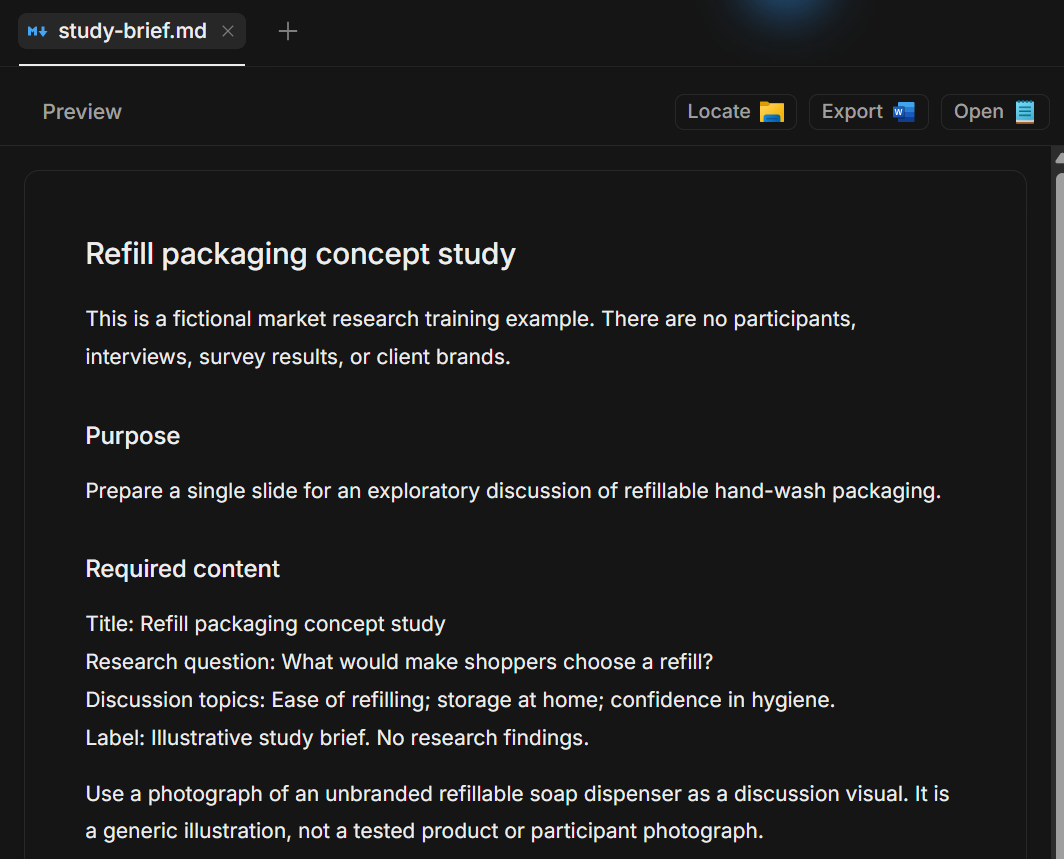
The brief is a text file containing the slide title, research question, three discussion topics, and output requirements. It contains no client data or findings.
Use Add and switch projects if you need help opening the project.
-
In your project, open
study-brief.mdfrom the file panel and read the required content.The question is
What would make shoppers choose a refill?. The discussion topics cover refilling, storage at home, and confidence in hygiene.The photograph is a generic discussion visual. It does not represent a participant, a tested concept, or evidence of shopper preferences.
-
Select New session and choose Research. Turn on Web, type
@browser, and select the Browser suggestion before sending your request.Name the brief and the output. Ask for Agent Browser when the task needs a website inspected visually.
Send the request below. The brief already specifies the slide content and where to save the PowerPoint file.
Make one PowerPoint slide using study-brief.md.
Use Agent Browser to find a reusable soap-dispenser photo and add it to the slide.
Check the image licence. Save the photo and source note in Outputs and link all three files.
You should see Research read the brief and start looking for an appropriate image. For your own study, replace the filename and describe the visual you need.
Follow the browser work
Follow the session activity while Research inspects public image pages. In this example, it opens a photograph’s file page and checks the stated reuse terms.
The conversation explains what it intends to collect before building the presentation. A task list separates finding the photo, reviewing the content, and creating the slide.
Browser inspection can take several actions. Keep the conversation available for questions, and wait for the proposed image and slide content.
Review the photo and approve the slide
-
Open the saved photograph and source note provided in the conversation.
Check that the photo suits the discussion, has no unwanted branding, and is sharp enough for its intended size.
Review the specific image’s source page, creator, reuse terms, and any required credit. Finding a picture in search results does not establish permission to reuse it.
In this example,
image-source.mdrecords the photo and its CC0 public-domain dedication. The presentation retains a voluntary credit to the photographer.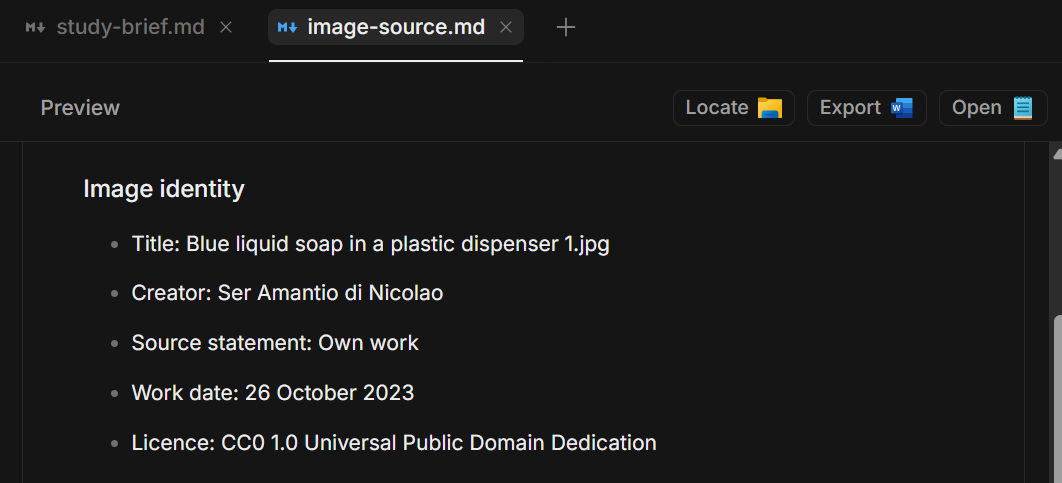
-
Review the proposed content in the conversation before approving the slide. In the screenshot, the proposal appears under Complete one-slide draft.
Check the title, question, discussion topics, and image caption against your brief. Keep the label
Illustrative study brief. No research findings.in this example.If a question card appears, choose the option that approves the reviewed content, then select Submit. The example uses Approve neutral design. If the agent asks in a reply, answer in the conversation. Ask for revisions if the text or photo needs changes.
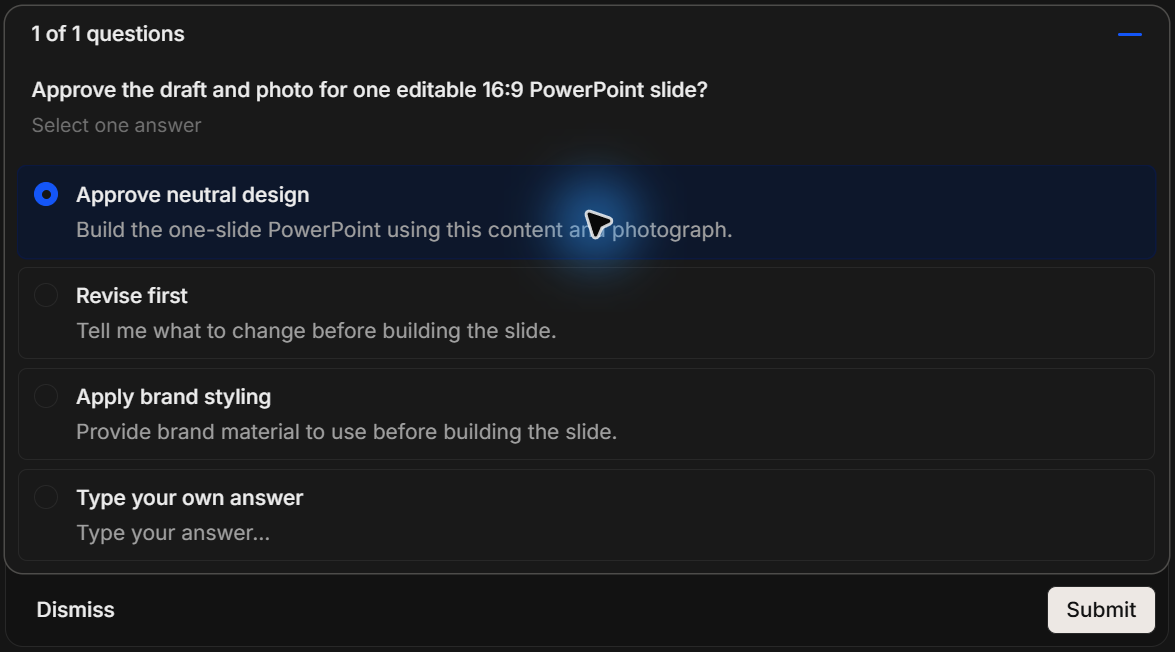
Research should begin creating the approved presentation. Content approval confirms the proposed slide; file-access permission requests are separate decisions.
Open and review the presentation
-
Wait for Research’s completion message, then expand
Outputsin the file panel.Select
Refill packaging concept.pptx. Use Find and preview project files to open it in PowerPoint.Keep the source photo and note with the presentation. Their names may differ from
soap-dispenser-source.jpgandimage-source.mdin the example. Ask for their paths if the reply leaves them out. -
Review the slide in PowerPoint at a readable size.
Check that the whole pump bottle is visible and its proportions look natural. Read the question, topics, illustrative label, and photo credit.
The example contains one slide. Its photo is embedded in the presentation, and the text remains editable.
This image is exported from the completed presentation, which was also reviewed in PowerPoint.
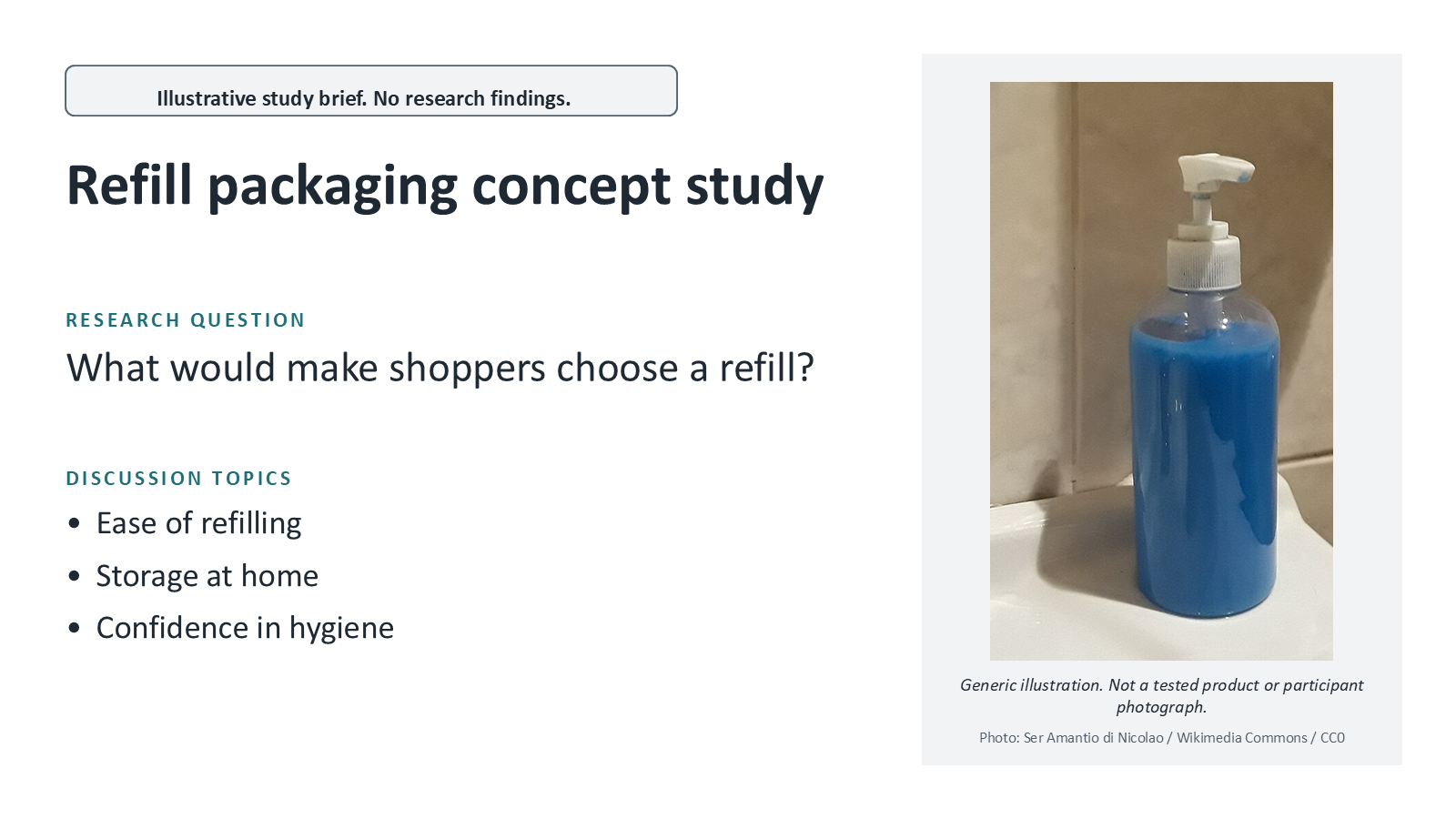
You should have a slide that matches the brief and keeps the image’s role clear. A discussion illustration is not a research result.
The example uses a 500 × 843 pixel preview because the source website limited the original download. Check your image at presentation size before sharing.
If the photo looks soft, request another suitable image or provide a higher-resolution copy you can use.
To compare your result, download the example PowerPoint. Its notes record the source link, image reuse terms, and illustrative purpose.
Save a view of the source page
To keep a visual record with your study, send this short follow-up:
Save a screenshot of the photo's source page as Outputs/photo-source-page.png.In this example, Agent Browser saves photo-source-page.png in Outputs. This crop shows the selected photograph on its source page.
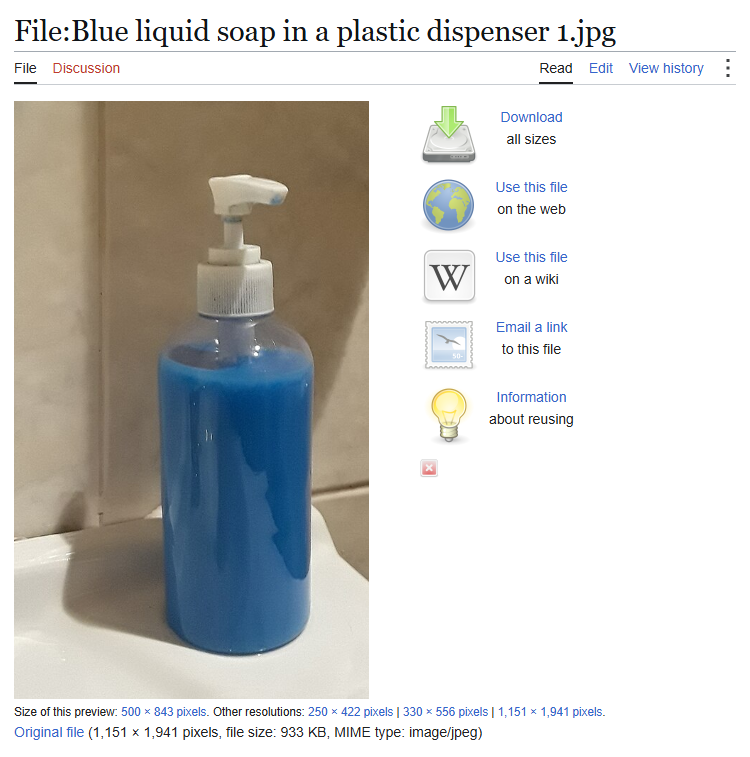
The screenshot records what the page displayed. Keep the source note too, so you can follow the original link and review its reuse terms.
Request a focused revision
Continue in the same conversation and describe one change at a time. You do not need to repeat the original brief.
For example, ask for a layout adjustment:
Make the photograph smaller and keep the whole pump visible.To use an existing presentation, place it in the project and name it in your request:
Add this photo to slide 3 of Discussion deck.pptx.
Save a new copy and keep the other slides unchanged.
Close the presentation in PowerPoint before asking Research to save a revision. An open file can prevent it from replacing that copy.
Review the revised slide and source credit before sharing. Use Give agents context for follow-up requests and review habits.
Resolve browser task problems
| Problem | What to do |
|---|---|
| Browser actions are unavailable | Check that Research is selected and Web is on. Follow Work with Agent Browser. |
| A website blocks access or limits requests | Ask for another accessible source. Provide a permitted image yourself if the task cannot continue. |
| The source does not establish reuse terms | Request a different image with a traceable source and suitable terms. |
| The photo has an unwanted brand or looks unclear | Describe the issue and ask for a replacement before accepting the slide. |
| The presentation cannot be saved | Close the open copy in PowerPoint and ask Research to retry, or request a new filename. |
| The slide contains unsupported findings | Identify the statements to remove. Ask Research to keep only the approved brief or supplied evidence. |
For a task involving a form, review its destination and contents before approving submission. Complete account sign-in yourself when required, and keep passwords out of chat.
