

Change the display name of your workspace so you can recognise it when you sign in to the Console. You need the Admin role to change this setting.
Change your workspace name
-
Open your workspace in the Console. Check the name beside the InsightGig logo, then open Settings > General.
-
In Workspace, select the current value in Name and replace it with the name you want, such as
Shopper research.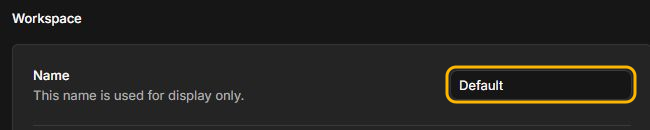
-
Press
Enterto save. The Console also saves when you leave the field. To discard the edit while the field is still active, pressEsc.
Check the name beside the InsightGig logo. Refresh the Console and check that the new name remains.
Resolve a name that did not save
Enter at least one visible character and keep the name to 255 characters or fewer. The Console removes spaces at the start and end of the name.
If the old name still appears after refreshing, check for an error beside Name. Confirm that you have the Admin role in that workspace.
Next steps
Use Manage workspace settings and members to check who has access. Use Manage model access and budgets to review spending limits.